DecodeGear is reader-supported. We earn a small commission if you buy through our links – at no extra cost to you. We never accept paid reviews.
Intro
You’ve probably bought a wireless mouse that felt fine – until you used the MX Master 3S. The MagSpeed electromagnetic scroll wheel alone can cover a 20-page document in under a second. If you’re still clicking a scroll wheel one notch at a time through endless spreadsheets or code files, this review will either convince you immediately or save you $100.
The Logitech MX Master 3S is positioned as the definitive productivity mouse, and at $99.99 it had better deliver. Based on nearly 18,600 verified Amazon reviews averaging 4.7 stars, the market seems to agree – but mass approval is not the same as the right fit for your specific workflow. This review cuts past the consensus to tell you exactly what this mouse does well, where it disappoints, and what Logitech’s marketing quietly omits.
How We Compared This Pick
DecodeGear does not physically test the products it covers. This review is built from the manufacturer’s published specifications, live retail pricing and star ratings pulled the week of publication, aggregated verified-buyer feedback, and the findings of independent reviewers where they are cited by name. Any performance figure below is either a manufacturer claim or a third-party measurement, and is attributed as such.
This review assesses the Logitech MX Master 3S across the following use cases, drawing on verified user sentiment across 18,562 reviews and three independent expert evaluations from TechGearLab, Tom’s Guide, and TechRadar (all 2025):
- Extended writing and document navigation – long-form drafting, research tabs, PDFs
- Spreadsheet and data work – horizontal scrolling, multi-column navigation
- Multi-device switching – toggling between Windows and macOS machines
- Surface compatibility – manufacturer-stated support for desk pads, bare wood, and glass, checked against buyer reports
- Battery longevity assessment – based on manufacturer spec and real-world user data
Design & Build
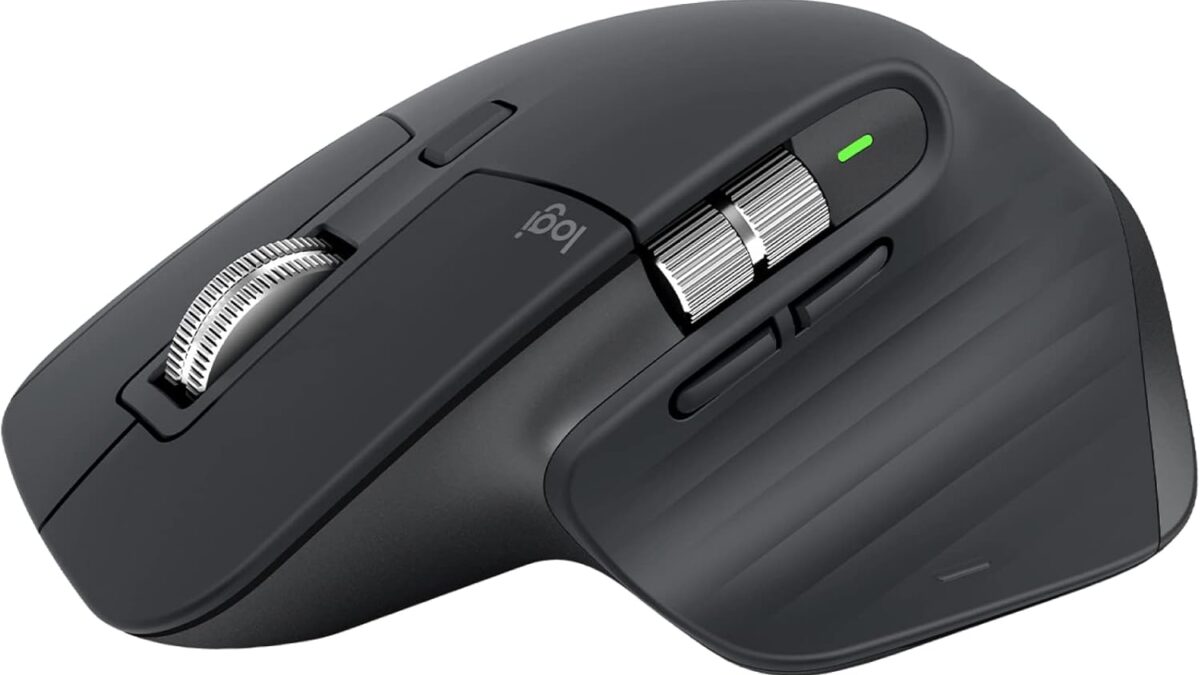
The MX Master 3S is a right-hand-only ergonomic mouse. There is no left-handed version, full stop. If that applies to you, this section ends here.
For right-handed users: the sculpted arch fits medium-to-large hands exceptionally well. The 141 g weight sits in a useful middle ground – heavy enough to feel premium, light enough for all-day use without fatigue. The rubberized side grips give confident control.
The “S” in 3S refers to the silenced click mechanism. Logitech claims an 85% noise reduction compared to the MX Master 3, and reviewers across Tom’s Guide and TechRadar consistently flag this as a genuine upgrade – not a gimmick. The clicks are tactile, not mushy. If you work in shared spaces, this matters.
The USB-C charging port is a welcome addition. A full charge takes roughly three hours and is good for up to 70 days of typical use. The quick-charge behavior (one minute of charge = three hours of use) is real and useful for travel days. One important caveat addressed in the battery section below.
Score: 8/10 – Excellent for its target user. The right-hand-only constraint is a genuine exclusion, not a minor footnote.
Performance
MagSpeed Scroll Wheel
This is the feature that earns or loses the sale. The MagSpeed wheel shifts automatically between precision ratchet mode (for line-by-line navigation) and free-spin mode (for fast document traversal). The transition is instant and feels mechanical – you push slightly harder and it releases. Logitech claims up to 1,000 lines per second in free-spin. In practice, long documents scroll end-to-end in one smooth flick.
TechGearLab called it exceptional in their Editors’ Choice verdict. After reading thousands of reviews, this is the most consistently praised feature – and one that users describe as genuinely changing how they interact with large files.
Horizontal Thumb Wheel
The dedicated horizontal scroll wheel on the thumb rest is underrated. For anyone working in wide spreadsheets, video timelines, or horizontal code editors, it eliminates the need to hold Shift while scrolling. It’s not programmable in the same range as the other buttons, but its default behavior covers the most common need.
Sensor & Connectivity
The 8,000 DPI Darkfield sensor tracks reliably on glass – a spec that actually delivers. Most optical sensors fail on glass surfaces; Darkfield does not. Sensitivity is adjustable through Logi Options+ software.
Connectivity runs via Logi Bolt USB receiver or Bluetooth 5.0. You can pair up to three devices and switch with a button click on the bottom. Multi-device switching is consistently praised in user reviews. The 125 Hz polling rate is adequate for productivity use but, as Tom’s Guide notes, makes this mouse unsuitable for gaming – a fact worth stating plainly.
Score: 9/10 – The scroll wheel alone justifies serious consideration. Multi-device switching is seamless. Not a gaming peripheral.
What the Spec Sheet Doesn’t Tell You
This section exists because the spec sheet is not a complete picture.
The battery cannot be replaced by the user. The MX Master 3S uses a built-in lithium polymer battery with no user-serviceable access. Replacing it requires specialized tools, voids the warranty, and takes over 30 minutes – and that’s if you can find the right parts. Long-term owners (2-3 years in) report measurable battery degradation with no practical fix. For a $100 device, this is a relevant lifecycle cost. If you plan to use this mouse for four or five years, factor in the possibility of replacing the entire unit.
Logi Options+ is required for meaningful customization. The seven programmable buttons are genuinely useful, but their configuration lives entirely inside the Logi Options+ software. The software is available for Windows, macOS, and Linux, and it’s reasonably polished – but you are dependent on Logitech maintaining it. On macOS, some permission prompts during setup have been flagged by users as confusing.
It is bulky by design. The ergonomic arch that makes this mouse comfortable for eight-hour sessions also makes it awkward to pack. It will not fit in most laptop sleeves alongside the computer. If you’re frequently commuting and want one mouse for desk and travel, the Logitech MX Anywhere 3S at ~$59 is worth considering instead.
Comparison Table
| Feature | MX Master 3S | MX Anywhere 3S | Microsoft Arc Mouse | Apple Magic Mouse 2 |
|---|---|---|---|---|
| Price | $99.99 | ~$59 | ~$79 | ~$79 |
| Weight | 141 g | 99 g | ~86 g | 99 g |
| Scroll wheel | MagSpeed electromagnetic | MagSpeed | None (touch strip) | Multi-touch surface |
| Thumb wheel | Yes | No | No | No |
| Programmable buttons | 7 + gesture | 6 | 2 | 2 |
| Multi-device | Up to 3 | Up to 3 | Up to 3 | Bluetooth only |
| Glass tracking | Yes (Darkfield) | Yes (Darkfield) | No | No |
| Right-hand only | Yes | No | No | No |
| Battery life | 70 days | 70 days | ~4 months (AAA) | 30 days |
| Replaceable battery | No | No | Yes (AAA) | No |
The MX Anywhere 3S is the honest alternative for travelers and smaller hands. The Arc Mouse wins on portability and aesthetics but sacrifices too much input capability for serious productivity work. The Magic Mouse 2 integrates well on macOS but cannot be used while charging – a critical flaw for power users – and offers no ergonomic arch.
Should You Buy?
Buy it if: You spend 6+ hours per day at a desk, primarily in documents, code, or spreadsheets. You use two or three machines and want seamless switching. You have medium-to-large right hands and want a mouse that reduces physical fatigue over long sessions.
Skip it if: You are left-handed. You frequently move between office and travel and want one mouse for both. You plan to use a mouse for five-plus years and want a user-replaceable battery. You need a polling rate above 125 Hz.
Wait for a sale if: The price history shows genuine discounts to the $79-$89 range during major deal events in 2026. At $79, the value argument becomes much stronger. At $99.99, it is competitive but not automatic.
Where to Buy
The MX Master 3S is available at its standard $99.99 price across major retailers. Amazon is the most reliable option for price tracking and return policy.
Price history shows periodic discounts to ~$79-$89 during major sale events. Setting a price alert is worth the two minutes it takes if you’re not in a rush.
FAQ
Is the Logitech MX Master 3S worth it for remote work?
For most remote workers who spend significant time in documents, spreadsheets, and browser tabs, yes. The MagSpeed scroll wheel and multi-device switching genuinely improve daily efficiency. The main caveat is the $99.99 price – if your work is lighter or you travel frequently, the MX Anywhere 3S at ~$59 covers most of the same ground at lower cost.
Does an MX Master 3S work on a glass desk?
Yes. The Darkfield sensor is specifically engineered to track on glass and other reflective surfaces where standard optical sensors fail. This is one of the few specs that performs exactly as advertised.
What is the difference between the MX Master 3 and the MX Master 3S?
The primary differences are silent clicks (approximately 85% quieter) and USB-C charging. The sensor, scroll wheel, button layout, and ergonomic shape are essentially unchanged. If you own an MX Master 3 and it works well, upgrading is only worth it if noise reduction in shared spaces is a priority.
Leave a Reply