A 4K monitor used to mean a four-figure invoice. That math changed. Panel yields improved, IPS costs dropped, and brands that barely existed five years ago (Sceptre, msi’s monitor division, KTC) started shipping genuinely sharp 3840×2160 displays for less than a mid-range pair of headphones. The catch is that “under $300” now spans everything from a bare-bones 60Hz panel with two ports to a 120Hz USB-C display that can single-cable charge your laptop while driving a 4K signal — and the spec sheets don’t make that difference obvious.
We compared five 4K monitors currently selling for less than $300 on Amazon, all confirmed in stock with live pricing as of this week. If you’re setting up a full budget home office, this is the display half of that equation — pair it with the right machine using our laptop buying framework if you’re starting from scratch.
Disclosure: DecodeGear earns a commission on qualifying purchases made through the Amazon links in this article, at no extra cost to you.
Quick Verdict
Best for tight budgets: msi PRO MP273U at $159.99 — the cheapest true 4K IPS panel that doesn’t feel like a compromise for static desk work.
| Monitor | Price | Refresh | Ports | Rating |
|---|---|---|---|---|
| Dell S2725QC | $279.99 | 120Hz | USB-C 65W, HDMI, DP | 4.2★ |
| LG 27US550-W | $229.99 | 60Hz | HDMI, DP | 4.4★ |
| LG 27US500-W | $228.00 | 60Hz | HDMI, DP | 4.4★ |
| Sceptre U275W-UPT | $177.97 | 70Hz | HDMI, DP | 4.1★ |
| msi PRO MP273U | $159.99 | 60Hz | HDMI, DP | 4.4★ |
1. Dell 27 Monitor S2725QC — Best Overall
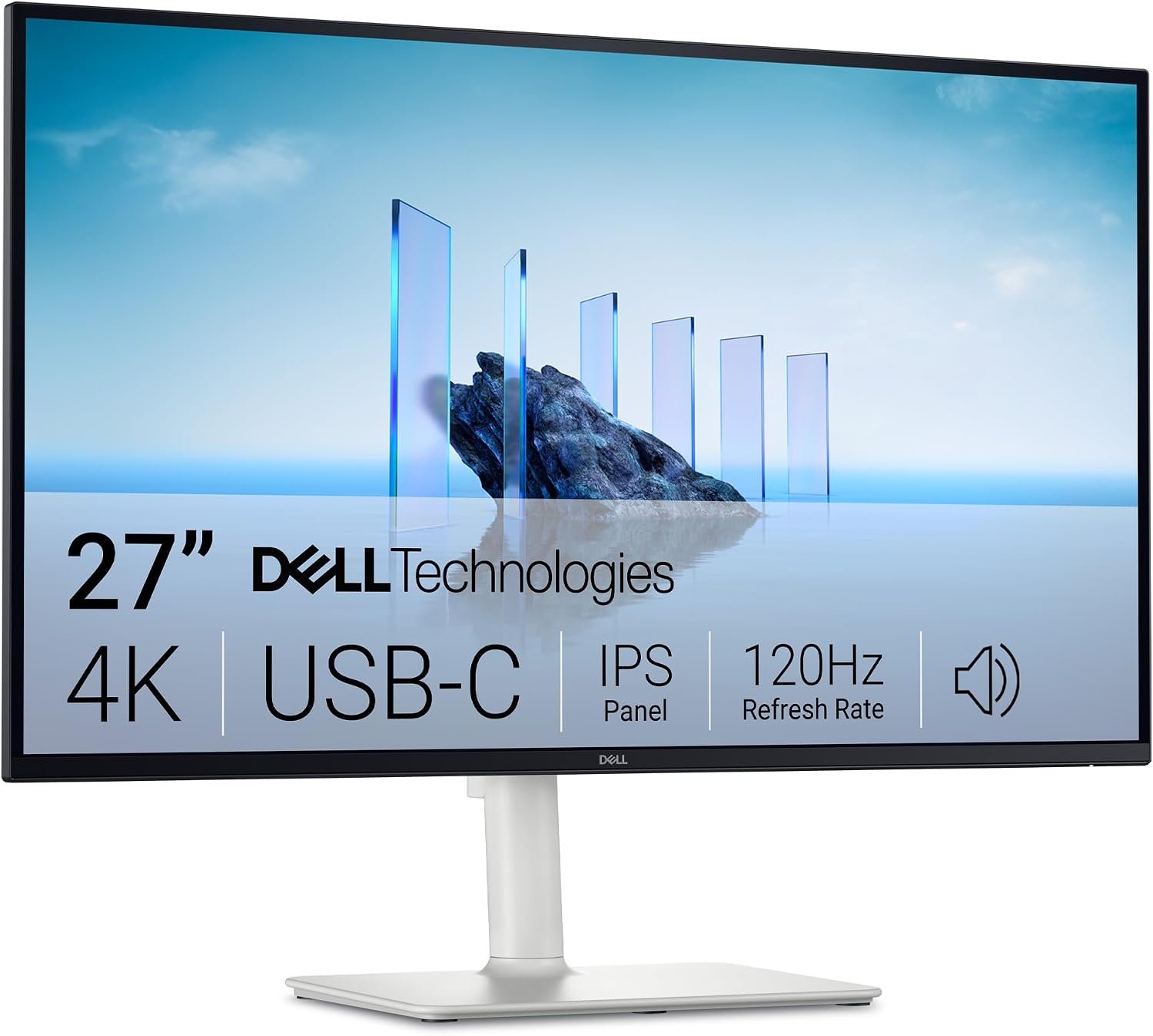
The S2725QC is the only monitor in this roundup with a 120Hz refresh rate at native 4K, which matters more than it sounds — scrolling text and cursor movement look noticeably smoother even outside of gaming. It also carries 65W USB-C power delivery, so a single cable can charge a laptop while carrying video and data. For anyone consolidating a desk down to one cord, that’s the deciding feature.
- Panel: 27″ IPS, 3840×2160, 99% sRGB, 4ms
- Connectivity: USB-C (65W PD), HDMI, DisplayPort
- Extras: FreeSync Premium, anti-glare coating, height/tilt/swivel stand
Pros: 120Hz at 4K is rare below $300; USB-C power delivery removes a brick from your desk; strong color accuracy for the price.
Cons: Stand footprint is larger than the LG models; no built-in speakers.
2. LG 27US550-W — Best for Ergonomics and HDR
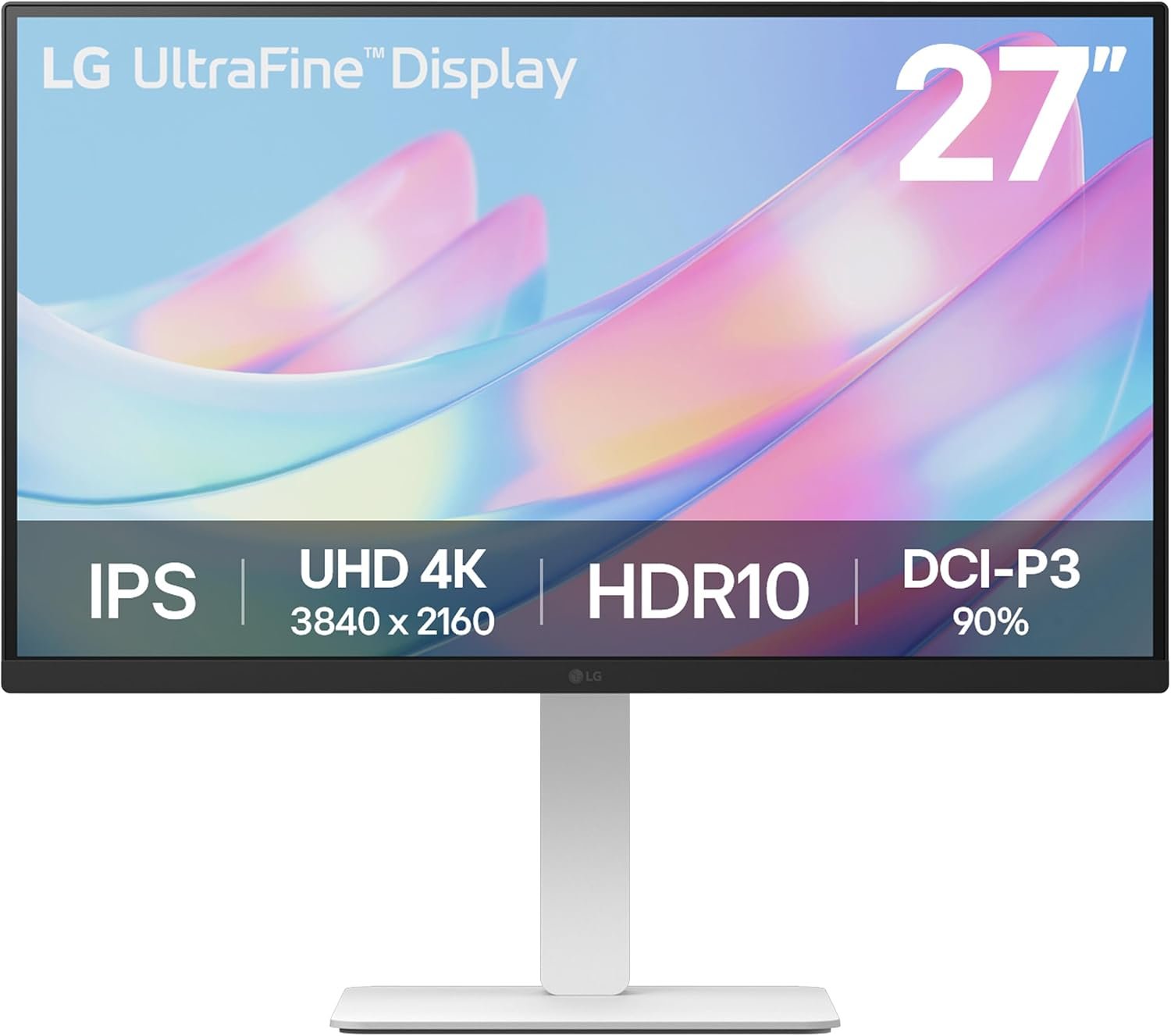
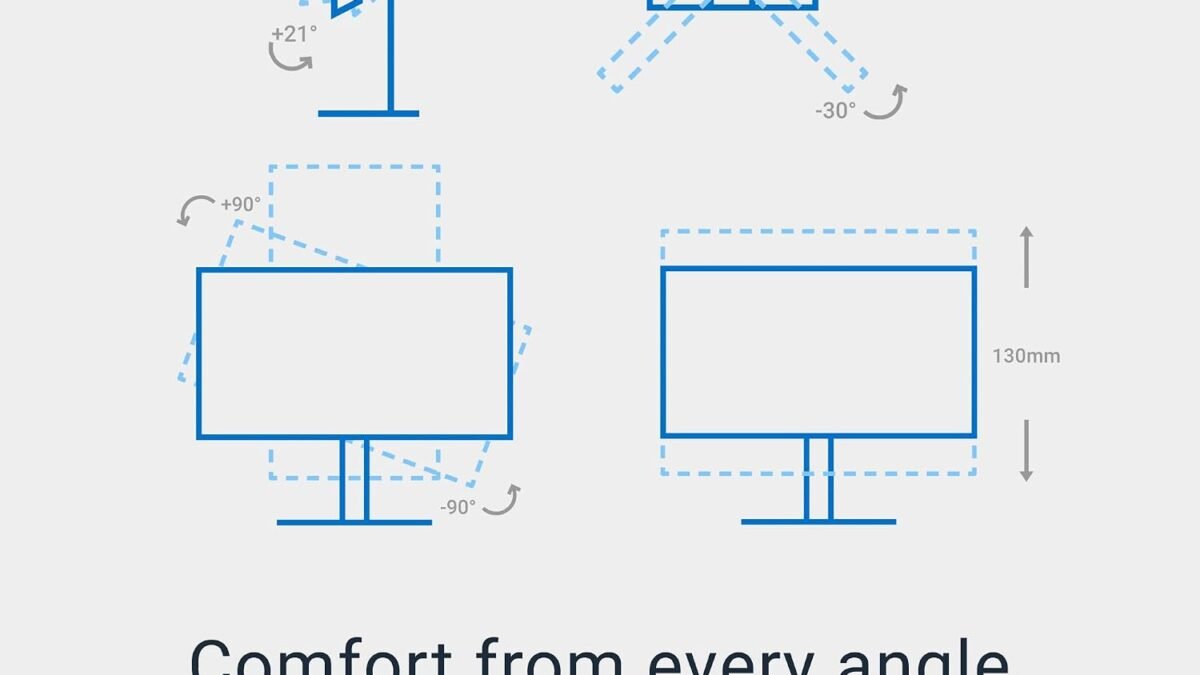
LG’s US550 adds a fully adjustable stand (height, tilt, swivel, and pivot) that the cheaper US500 below skips, plus HDR10 support that actually shows up in streaming apps and photo editing. If you spend long hours at the desk and want to rotate the panel to vertical for reading code or documents, this is the one that lets you.
- Panel: 27″ IPS, 3840×2160, HDR10, 60Hz
- Connectivity: HDMI, DisplayPort
- Extras: Full pivot/height/swivel stand, Reader Mode, flicker-safe backlight
Pros: Best ergonomic stand in this price range; HDR10 adds real contrast for media; comfortable for long sessions.
Cons: No USB-C; 60Hz only.
3. LG 27US500-W — Best Value
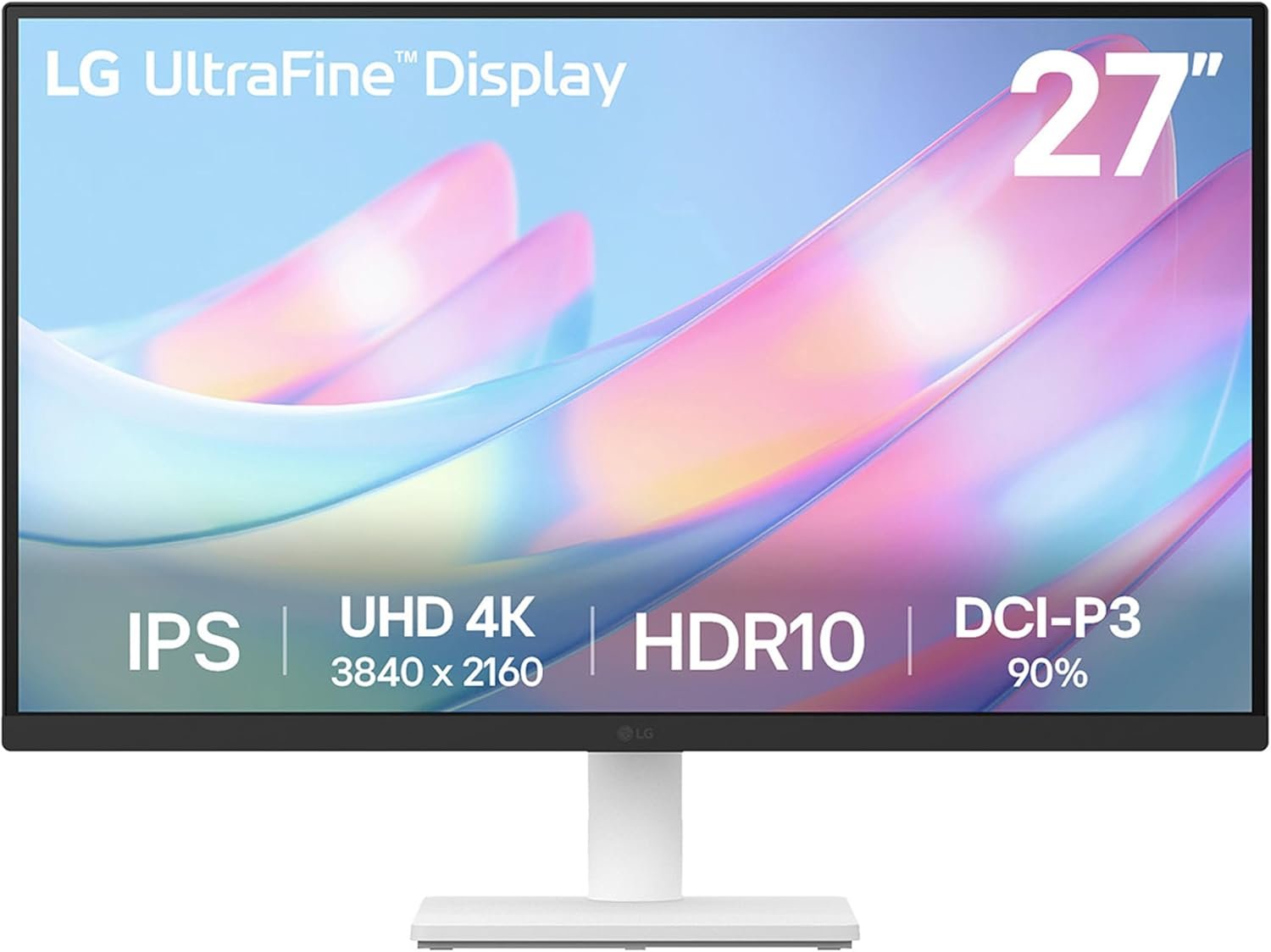
Strip away the adjustable stand and HDR badge from the US550 and you get the US500 — the same 4K IPS panel and borderless design for about $2 less, on a fixed stand. If you’re wall-mounting it or already own a monitor arm, the stand doesn’t matter and this becomes the smarter buy of the two LG models.
- Panel: 27″ IPS, 3840×2160, borderless design, 60Hz
- Connectivity: HDMI, DisplayPort
- Extras: Reader Mode, flicker-safe, VESA mountable
Pros: Same panel quality as the US550 for less if you don’t need the fancy stand; clean borderless design.
Cons: Fixed-height stand only; no HDR10.
4. Sceptre Prime U275W-UPT — Best Budget Pick
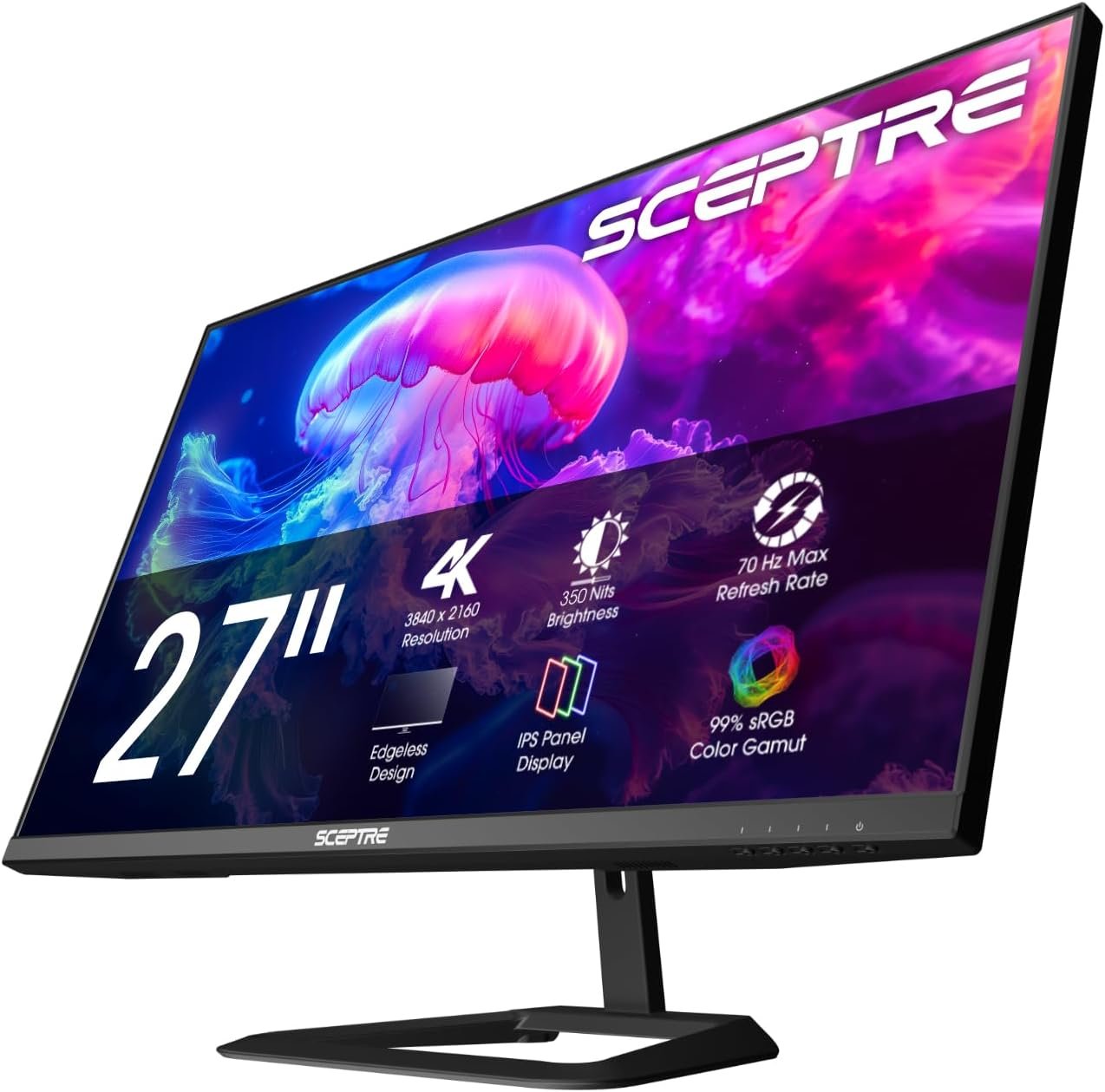
Sceptre built a reputation on selling more screen for less money, and the 2026 Prime revision of the U275W-UPT keeps that going with a 100% sRGB IPS panel and a slightly bumped 70Hz refresh, ahead of the standard 60Hz most budget 4K panels ship with. It’s not going to out-color-accurate the Dell or LG panels here, but for general desk use and media consumption it punches well above its price.
- Panel: 27″ IPS, 3840×2160, 100% sRGB, up to 70Hz
- Connectivity: HDMI, DisplayPort
- Extras: Built-in speakers, VESA mountable
Pros: Cheapest way into 4K without dropping to a no-name brand; built-in speakers save a purchase.
Cons: Lowest rating of the five (4.1★); stand is basic tilt-only.
5. msi PRO MP273U — Best Cheapest
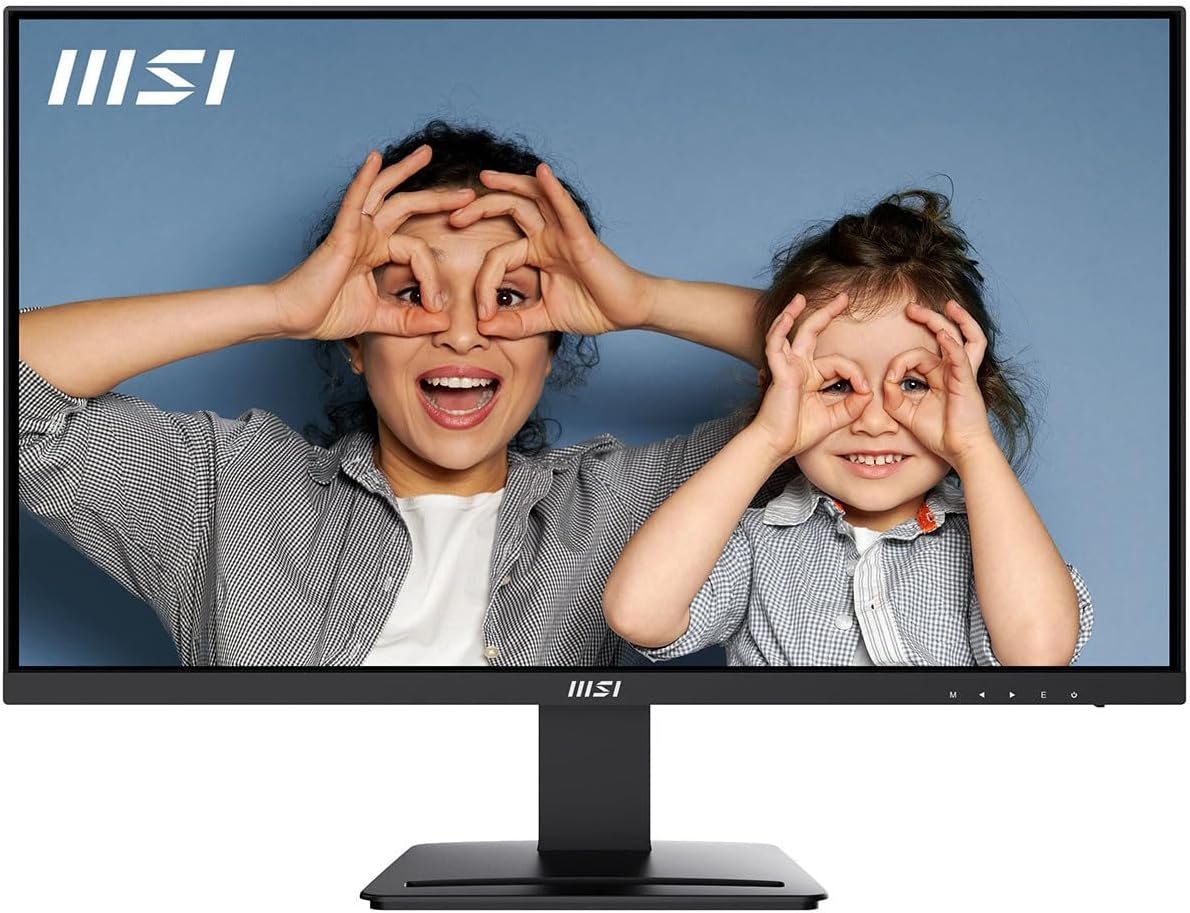
msi’s monitor division doesn’t get the same attention as its gaming laptops, but the PRO MP273U is a legitimately clean, no-drama 4K IPS panel for under $160 — the lowest confirmed price in this roundup. There’s nothing exciting about it: no HDR, no high refresh, no USB-C. What it does have is a sharp, color-accurate panel for spreadsheet and browser work, which is what most people buying a budget 4K monitor actually need it for.
- Panel: 27″ IPS, 3840×2160, 60Hz, 4ms
- Connectivity: HDMI, DisplayPort
- Extras: Adaptive-Sync, anti-glare
Pros: Lowest price of any monitor here; msi’s build quality is solid despite the price; strong 4.4★ rating.
Cons: No extras — this is a panel and a stand, nothing more.
Which One Should You Buy?
If you work from a laptop and want to cut your desk down to a single cable, the Dell S2725QC is worth the extra $50 over the field — the 65W USB-C power delivery alone replaces a charger, and 120Hz makes everyday use feel noticeably snappier than every other panel here. If you spend long hours at the desk and care about posture, the LG 27US550-W‘s full-motion stand is the more comfortable long-term choice, while the 27US500-W gets you the same panel for less if you already have a monitor arm. Gamers and media watchers chasing dollar-for-dollar value should look at the Sceptre U275W-UPT, and anyone who just wants a sharp screen for the least money possible should stop at the msi PRO MP273U.
Whatever you land on, check your GPU or laptop’s output before buying: 4K at 120Hz needs a DisplayPort 1.4 or HDMI 2.1 connection to hit full refresh, and older integrated graphics can struggle to drive 4K smoothly even at 60Hz for anything beyond text and browsing.
How We Compared These Picks
DecodeGear doesn’t physically test every monitor that crosses this list. Instead, we verify current Amazon listings live — price, stock status, and specs pulled directly from each product page — and cross-reference panel specifications (resolution, refresh rate, color gamut, connectivity) against manufacturer datasheets. Star ratings reflect aggregated, verified Amazon customer reviews at the time of publication, not our own physical testing. Where independent test data exists from outlets like RTINGS or PCMonitors, we cite it directly rather than implying we ran the tests ourselves.
If your setup leans more toward gaming than productivity, our 165Hz gaming monitor picks cover the higher-refresh side of the market these 60-120Hz panels don’t chase.
Frequently Asked Questions
Is a 4K monitor under $300 actually worth it, or should I stick with 1440p?
For desk work, browsing, and media, yes — 4K at 27 inches gives you noticeably sharper text and more usable screen real estate than 1440p at the same size, and the panels in this list deliver that without the color and refresh-rate compromises budget 4K monitors had a few years ago. For competitive gaming specifically, a high-refresh 1440p panel is still the better trade-off.
Do I need USB-C, or is HDMI/DisplayPort enough?
HDMI and DisplayPort are enough to drive 4K video from any desktop GPU or modern laptop. USB-C only matters if you want a single cable to also charge your laptop and carry data — useful for minimizing cable clutter, but not required for image quality.
Is 27 inches the right size, or should I go bigger at this price?
27 inches is the sweet spot for 4K without needing OS scaling — text stays crisp and comfortably readable at 100% scale from a normal desk distance. Going to 32 inches at the same 3840×2160 resolution lowers pixel density, which can make small text look slightly softer.
What GPU or laptop do I need to actually use 4K at 60Hz or higher?
Any GPU from the last several years, including most laptop integrated graphics, can output 4K at 60Hz for desktop and browsing. Driving 4K at 120Hz — like the Dell S2725QC supports — for smooth scrolling or light gaming benefits from a dedicated GPU and a DisplayPort 1.4 or HDMI 2.1 cable capable of the higher bandwidth.
Leave a Reply