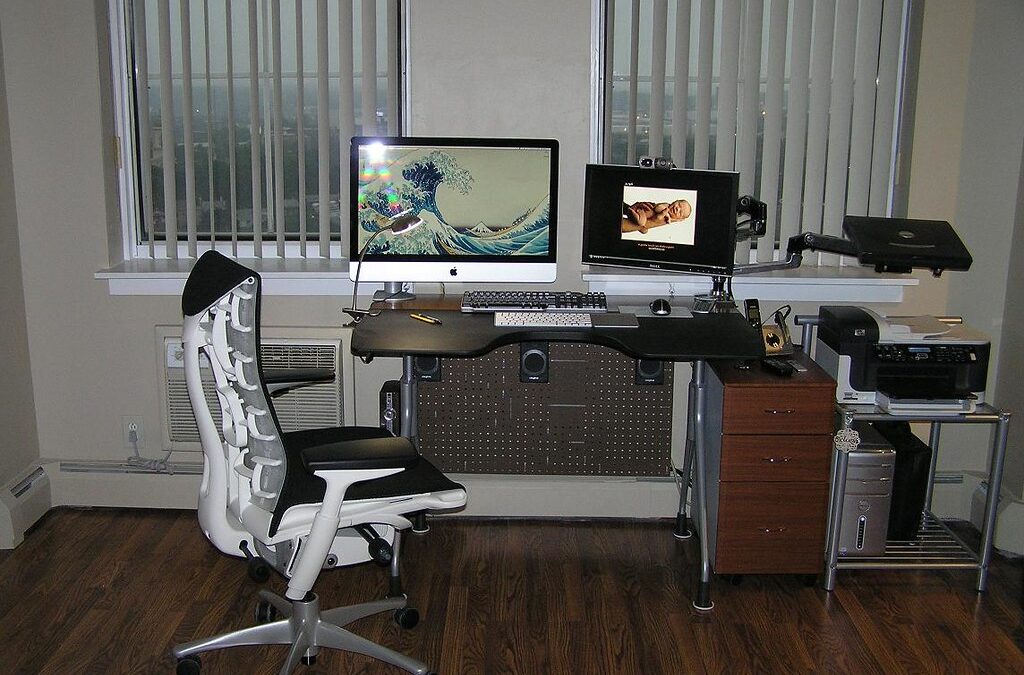
Most home office advice assumes you’re furnishing a corner office: a $1,200 sit-stand desk, a $900 chair, dual 4K monitors. If you’re working from a bedroom corner or a shared living room, that list is useless. Here’s a realistic version — a setup that’s actually comfortable and productive, built for well under $800, with clear priorities on where to spend and where to cut corners.
What You’ll Learn
This guide walks through the five things that matter most in a home office — chair, desk, monitor, lighting, and cable management — in the order you should actually spend money on them, plus a few pro tips that make a bigger difference than they cost.
1. Start With the Chair, Not the Desk
Most people buy a desk first and treat the chair as an afterthought. That’s backwards. You touch your chair for eight hours a day; you touch your desk’s edges for about eight seconds. A genuinely ergonomic chair — adjustable lumbar support, seat depth, and armrest height — runs $200-$400 new. If that’s out of budget, refurbished Steelcase Leap or Herman Miller Aeron units show up at used office-furniture dealers and liquidators for $150-$300, often in better shape than a new budget chair at the same price. Avoid gaming chairs for all-day desk work — the bucket-seat shape looks supportive but doesn’t adjust the way a real office chair does.
2. Desk: Function Over Size
A dedicated desk costs $300-$600 if you want a sit-stand model, but you don’t need one to start. A solid fixed-height desk or even a repurposed dining table paired with a $40-$60 desktop riser gets you 80% of the ergonomic benefit of a motorized desk for a fraction of the price. What actually matters is depth (at least 24 inches, so your monitor isn’t right against your face) and a stable surface that doesn’t wobble when you type — cheap desks fail on stability long before they fail on looks.
3. One Good Monitor Beats Two Bad Ones
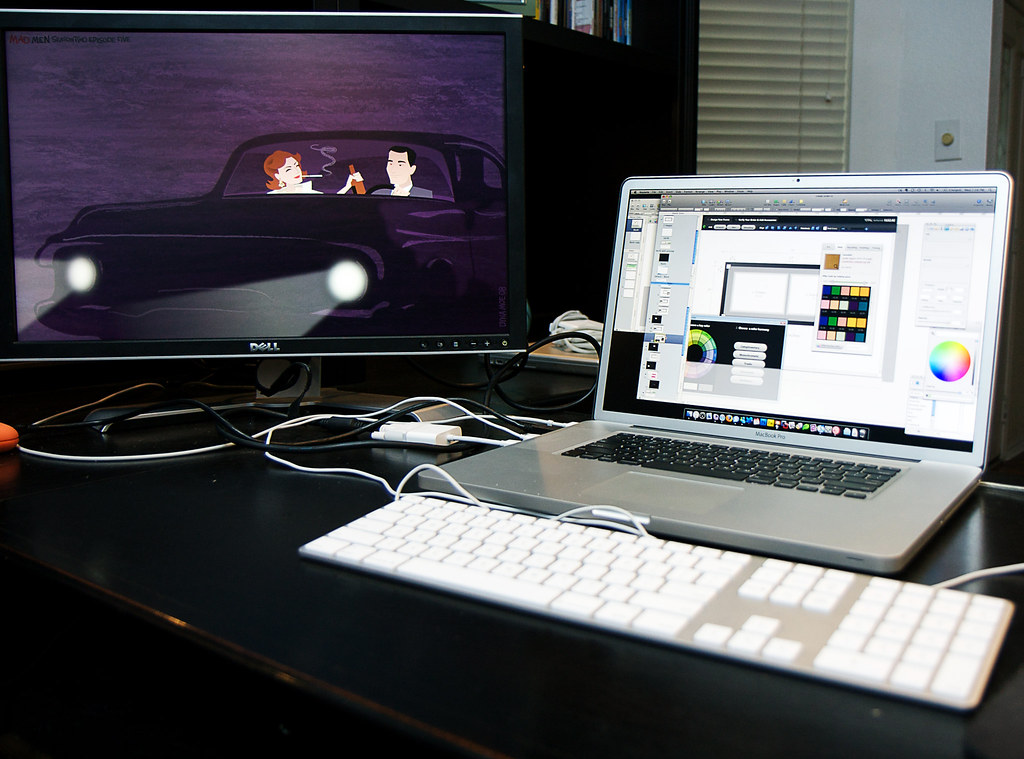
A single 24-27 inch external monitor in the $120-$200 range does more for your posture and productivity than working off a laptop screen ever will. Pair it with a monitor arm ($30-$50) instead of the stock stand — an arm lets you raise the screen to eye level, which is the single biggest fix for neck strain at a desk. If you’re already running two monitors off a laptop, our USB-C docking station guide covers how to do it with one cable instead of a tangle of adapters. For picking the monitor itself, see our roundup of the best monitors for work from home.
4. Lighting Is the Cheapest Fix With the Biggest Payoff
A $20-$40 desk lamp with adjustable color temperature fixes two problems at once: it reduces eye strain during long sessions, and it makes you look dramatically better on video calls without needing a dedicated ring light. Position it in front of you, not behind — backlighting from a window is the most common video-call mistake, and it’s free to fix by just turning your desk 90 degrees.
5. Cable Management and Power
This is the step everyone skips and everyone regrets skipping. A $15-$25 under-desk cable tray or a handful of adhesive clips keeps power bricks, chargers, and dongles from turning into a nest under your feet. If you’re running a monitor, dock, lamp, and laptop charger from one outlet, a basic surge-protected power strip is not optional — it’s the cheapest insurance you’ll buy for your gear.
Pro Tip: Buy the Chair Used, Buy the Monitor New
Office furniture liquidators (search “used office furniture” plus your city) are the best-kept secret in home office setups — chairs and desks depreciate fast and get resold for a third of retail. Monitors are the opposite: buy new, since older used panels often have dead pixels or burn-in that’s hard to spot in a quick listing photo.
Putting the Budget Together
A realistic starter setup lands around $800: chair ($250), desk or riser ($150-$400 depending on whether you already have a table), monitor plus arm ($180), lighting ($30), and cable management ($20). That’s not a minimalist setup — it’s a genuinely comfortable one. You can always upgrade individual pieces later; what matters on day one is that your chair supports your back and your screen is at eye level, since those two things cause the most physical strain if you get them wrong.
If you’re also upgrading your keyboard as part of this setup, our guide to mechanical keyboard switch types breaks down which switches suit typing-heavy work versus general use. And if seating budget is tight, our budget chair roundup covers options that work reasonably well for desk use too, even though they’re marketed for gaming.
Frequently Asked Questions
Do I really need a standing desk?
No. A standing desk is a nice-to-have, not a requirement. A stable fixed-height desk at the right height, combined with getting up and moving every hour, covers most of the health benefit for a fraction of the cost.
Is a laptop stand enough instead of an external monitor?
A laptop stand helps with posture but doesn’t solve screen size. If you spend more than a couple hours a day at your desk, an external monitor is worth the $120-$200 far more than a stand alone.
What’s the single highest-impact upgrade if I can only buy one thing?
The chair. Desk height and monitor position are things you can improvise around with books or a riser. A chair that doesn’t support your lower back will hurt regardless of what else is set up correctly.
How much should I budget if I want to go bigger later?
Treat $800 as the comfortable floor, not the ceiling. A sit-stand desk motor upgrade, a second monitor, or a proper ergonomic keyboard are all reasonable next steps once the core five items are in place.
Want a monitor arm or desk lamp to match this setup? Browse monitor arms on Amazon or check adjustable desk lamps.
Leave a Reply