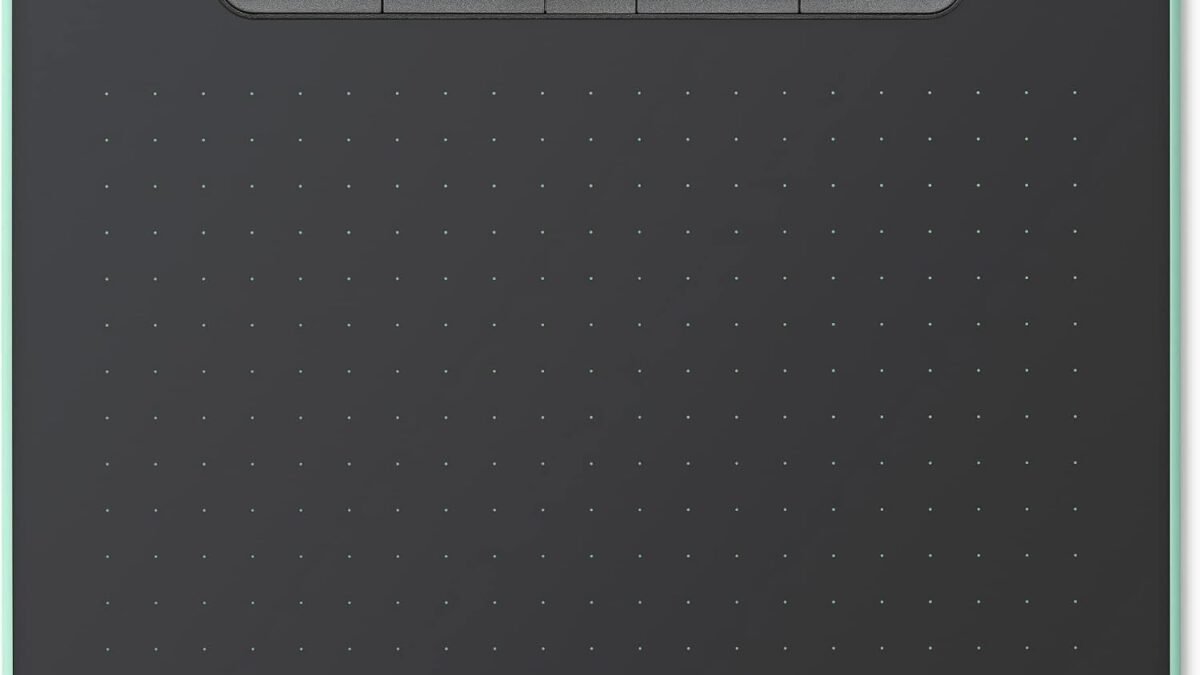
Wacom Intuos Medium Bluetooth
$229.99- Most stable, mature driver software in the category
- Broad OS support - Windows, Mac, Chromebook, and Android
- Bluetooth for a cable-free setup
- Costs roughly 5x the XPPen budget option for a similar spec sheet
- No screen - some artists prefer drawing directly on the display
Bottom line: The Wacom Intuos Medium Bluetooth is the best all-around graphics tablet for most digital artists, trading a higher price for the most reliable driver experience in the category.
Most people who want to draw digitally reach for an iPad and an Apple Pencil, and that’s a perfectly good answer for a lot of artists. But if you’re serious about illustration, comics, or concept art — or you just want a bigger active area and pressure sensitivity that doesn’t compromise for a battery — a dedicated graphics tablet from Wacom, Huion, or XPPen is still the tool professionals actually reach for. We compared five real, currently-available tablets across every price tier to help you pick the right one without guessing.
Disclosure: DecodeGear may earn a commission from qualifying Amazon purchases made through links in this article, at no extra cost to you.
Best for: Artists past their first tablet who want reliability over raw spec numbers.
Quick Comparison
| Tablet | Type | Price | Best for |
|---|---|---|---|
| HUION Inspiroy H640P | Pen tablet, no screen | $27.99 | Absolute budget / travel |
| XPPen Deco 01 V3 | Pen tablet, no screen | $44.99 | Best full-size beginner value |
| Wacom Intuos Medium Bluetooth | Pen tablet, no screen | $229.99 | Overall pick / driver reliability |
| HUION Kamvas 13 (Gen 3) | Pen display | $209.00 | Cheapest way into a screen tablet |
| HUION Kamvas Pro 24 4K UHD | Pen display | $879.00 | Professional studio work |
1. HUION Inspiroy H640P — Best Ultra-Budget Pick
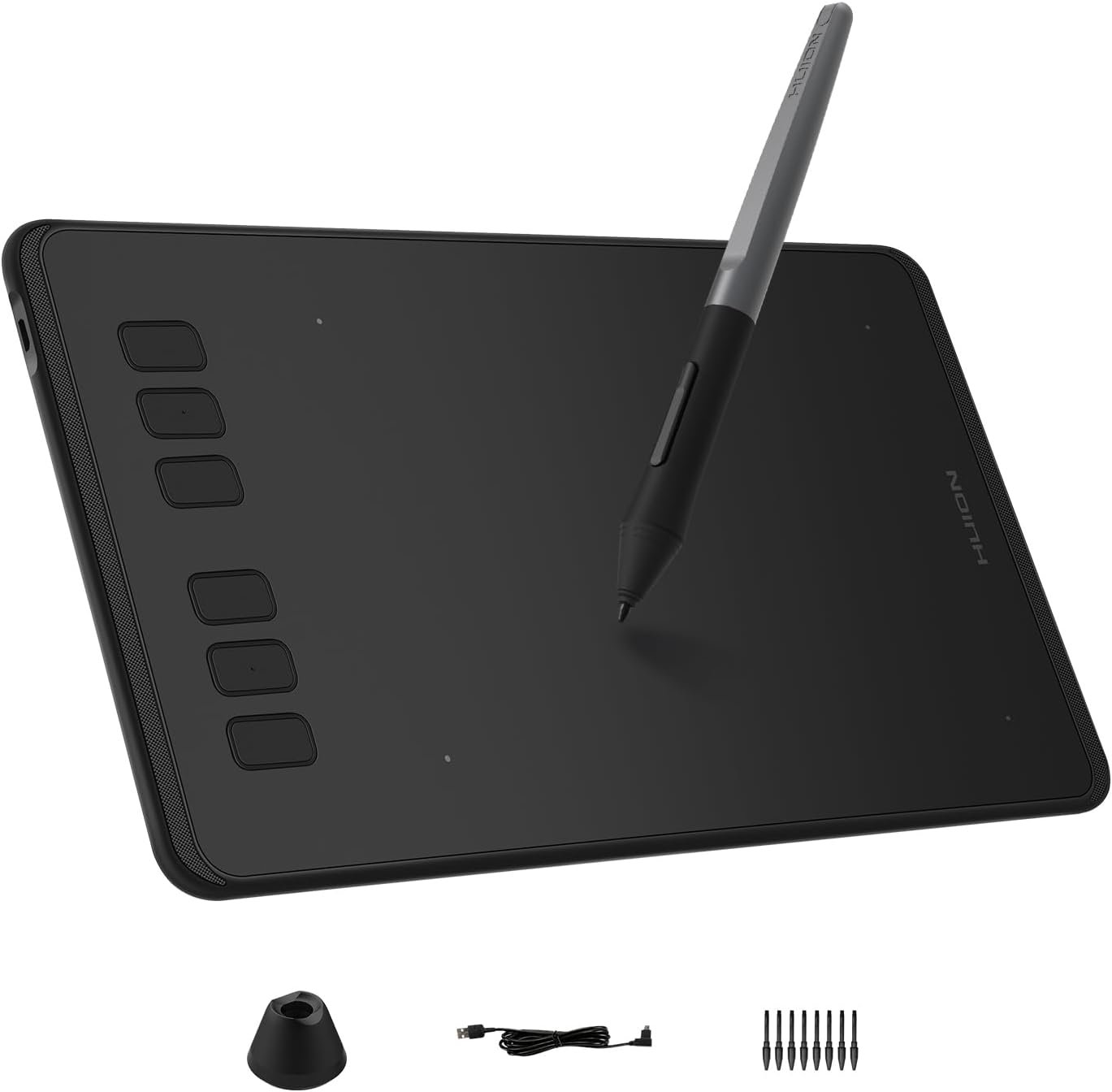
At $27.99, the Inspiroy H640P is the cheapest way to find out if digital art is for you. It’s a 6×4-inch active area with 8,192 levels of pressure sensitivity and a battery-free stylus — specs that would have been mid-range flagship numbers a few years ago. The small size is the tradeoff: it’s great for sketching and note-taking, cramped if you’re used to sweeping full-arm gestures on a large monitor.
Pros: Extremely cheap, genuinely portable, no battery to charge in the pen.
Cons: Small active area, Huion’s driver software is the least polished of the three brands here.
2. XPPen Deco 01 V3 — Best Full-Size Beginner Tablet
For $44.99, the Deco 01 V3 steps up to a proper 10×6-inch active area with 16K-level pressure resolution and eight programmable shortcut keys. It’s the tablet we’d point most first-time buyers toward: enough room to work comfortably, a low enough price that a bad fit isn’t a real loss, and specs that don’t bottleneck you as your skills improve.
Pros: Full-size working area for the price, battery-free stylus, shortcut keys.
Cons: XPPen’s driver updates occasionally require a full reinstall to fix pressure-detection bugs — a known quirk across the brand, not unique to this model.
3. Wacom Intuos Medium Bluetooth — Best Overall
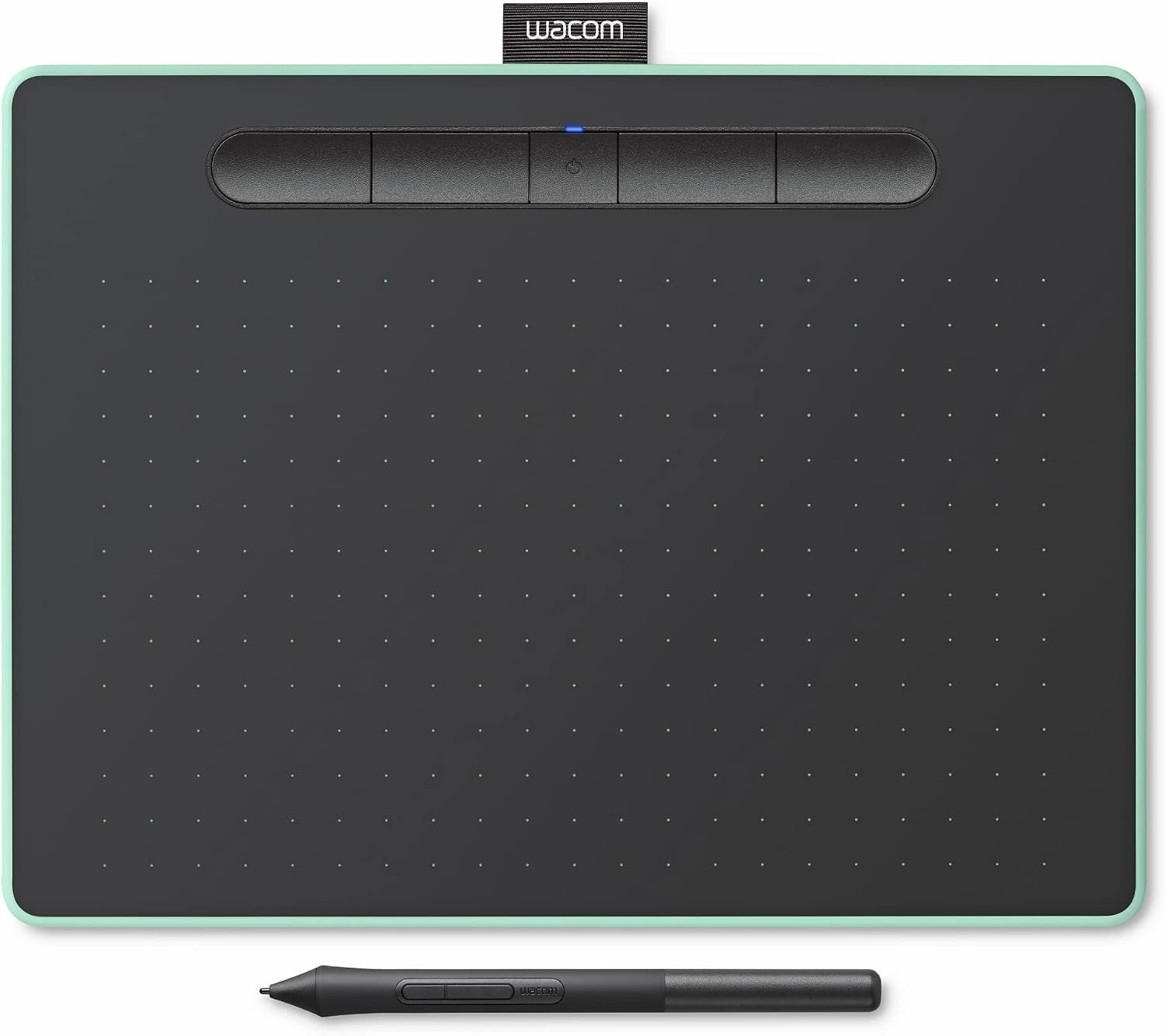
Wacom effectively invented this product category, and at $229.99 the Intuos Medium is where that experience shows. Four ExpressKeys, Bluetooth for a cable-free setup, and support across Windows, Mac, Chromebook, and Android cover more use cases than either budget option. The real selling point isn’t a spec sheet number — it’s that Wacom’s driver stack is widely regarded as the most stable of the three brands, which matters more than raw pressure levels once you’re doing serious, repeated work.
Pros: Best driver reliability in the category, broad OS support, well-built.
Cons: Costs 5x more than the XPPen option for a spec sheet that isn’t dramatically different on paper.
4. HUION Kamvas 13 (Gen 3) — Cheapest Real Pen Display
Everything above is a screenless pen tablet — you draw on the pad while looking at your monitor. The Kamvas 13 is different: a 13.3-inch pen display with full lamination and 99% sRGB coverage, letting you draw directly where the line appears. At $209.00 it’s the most affordable real entry point into that workflow, which historically cost $400+.
Pros: Draw-on-screen workflow at a screenless-tablet price, solid color accuracy for the price.
Cons: Some parallax (a small gap between pen tip and cursor) is normal on pen displays at this price, and it needs a free USB-C or HDMI port plus desk space a screenless tablet doesn’t.
5. HUION Kamvas Pro 24 4K UHD — Best for Professional Studio Work
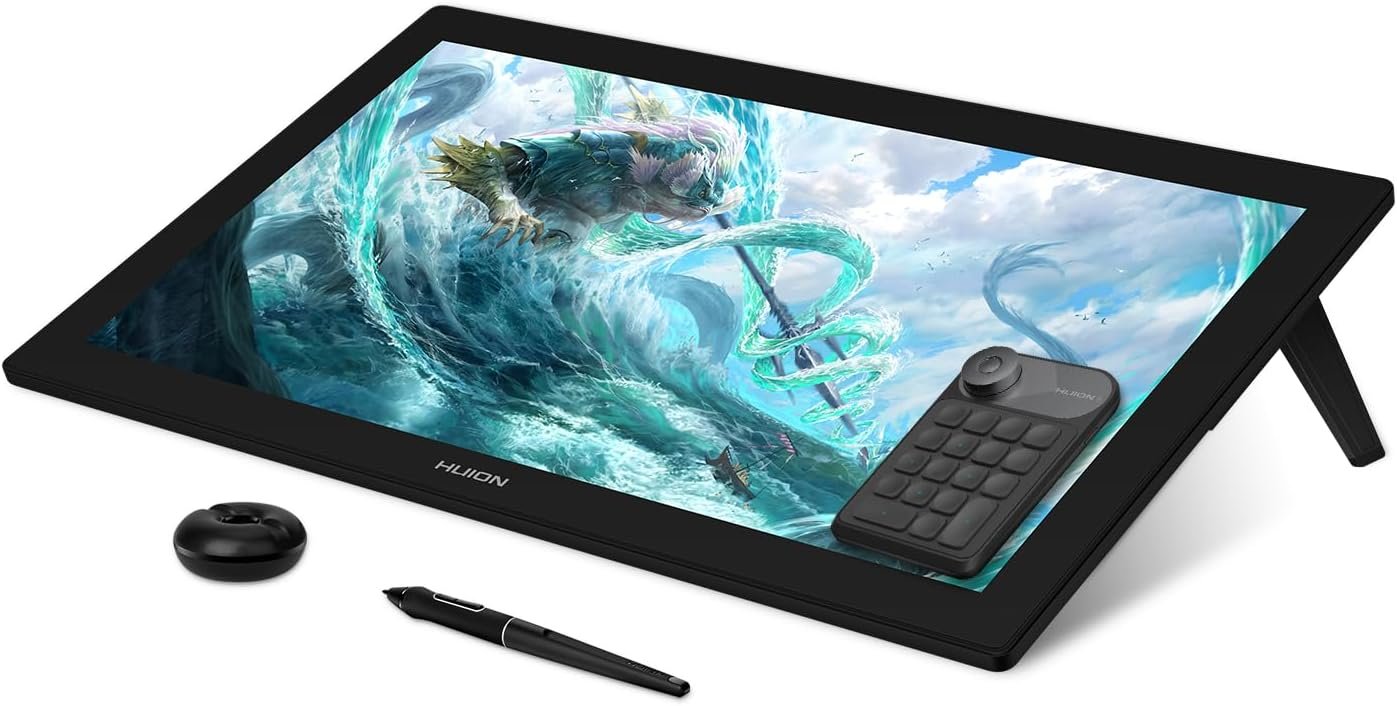
At $879.00, the Kamvas Pro 24 is aimed squarely at working professionals: a 23.8-inch 4K display, 140% sRGB coverage, anti-glare etched glass, and a wireless ExpressKey remote. It’s a real monitor replacement that happens to take a pen, which is why it belongs in a home studio rather than a beginner’s toolkit.
Pros: Genuinely wide color coverage, large comfortable working surface, professional build quality.
Cons: Expensive, large enough that it needs a dedicated desk setup, overkill if you’re still deciding whether digital art is for you.
Which One Should You Buy?
If you’re not sure digital art is going to stick, start with the $27.99 HUION Inspiroy H640P or the $44.99 XPPen Deco 01 V3 — both give you real pressure sensitivity without a real financial commitment. If you already know you’ll stick with it and want the tool that gets out of your way, the Wacom Intuos Medium Bluetooth is worth the jump for driver stability alone. Want to draw directly on the line instead of looking at a separate monitor? The HUION Kamvas 13 is the cheapest legitimate way in, and the Kamvas Pro 24 is where you land once budget stops being the limiting factor.
Already own an iPad? It’s worth comparing against a dedicated Apple Pencil setup before you buy a second device — our guide to the best stylus options for iPad breaks down where that setup still wins. And if a pen display’s color accuracy matters to you, our roundup of budget 4K monitors covers the same sRGB coverage numbers in a traditional-monitor context, useful for comparison.
A Quick Tip Before You Buy: Nibs Wear Out
Every pen on this list uses a replaceable nib, and that nib wears down faster than most first-time buyers expect — heavy daily use can dull one in a few months. Buy a spare nib kit alongside the tablet (most brands sell them for a few dollars) rather than discovering mid-project that your line quality has quietly degraded. It’s a small cost that’s easy to forget until the tablet itself is already unboxed.
Frequently Asked Questions
Do I need a screen (pen display) tablet, or is a screenless one fine?
Screenless pen tablets are lighter, cheaper, and have lower input lag — most professional illustrators actually prefer them once they’re used to looking at the monitor instead of the pad. Pen displays matter more for tasks like precise lettering or color-matching where looking directly at the line helps.
Does pressure sensitivity level (4K vs 8K vs 16K) actually matter?
The jump from 4,096 to 8,192 levels is noticeable in practice. Going from 8,192 to 16,384, as on the XPPen here, is much subtler — most artists won’t feel a real difference day to day.
Why is Wacom so much more expensive than Huion or XPPen for similar specs?
You’re mostly paying for driver and software reliability, not raw hardware capability. Huion and XPPen tablets can draw just as well on paper, but their driver software has a documented history of pressure-detection bugs after updates — an acceptable tradeoff for hobbyists, more of a real cost for anyone billing hours.
Can I use a graphics tablet with a Chromebook or Android tablet?
Some can — the Wacom Intuos Bluetooth model in this list explicitly supports Chromebook and Android alongside Windows and Mac. Always check the specific model’s OS compatibility list before buying if you’re not on a standard Windows or Mac desktop.
Disclosure: DecodeGear is reader-supported. When you buy through links on our site, we may earn an affiliate commission.
Leave a Reply