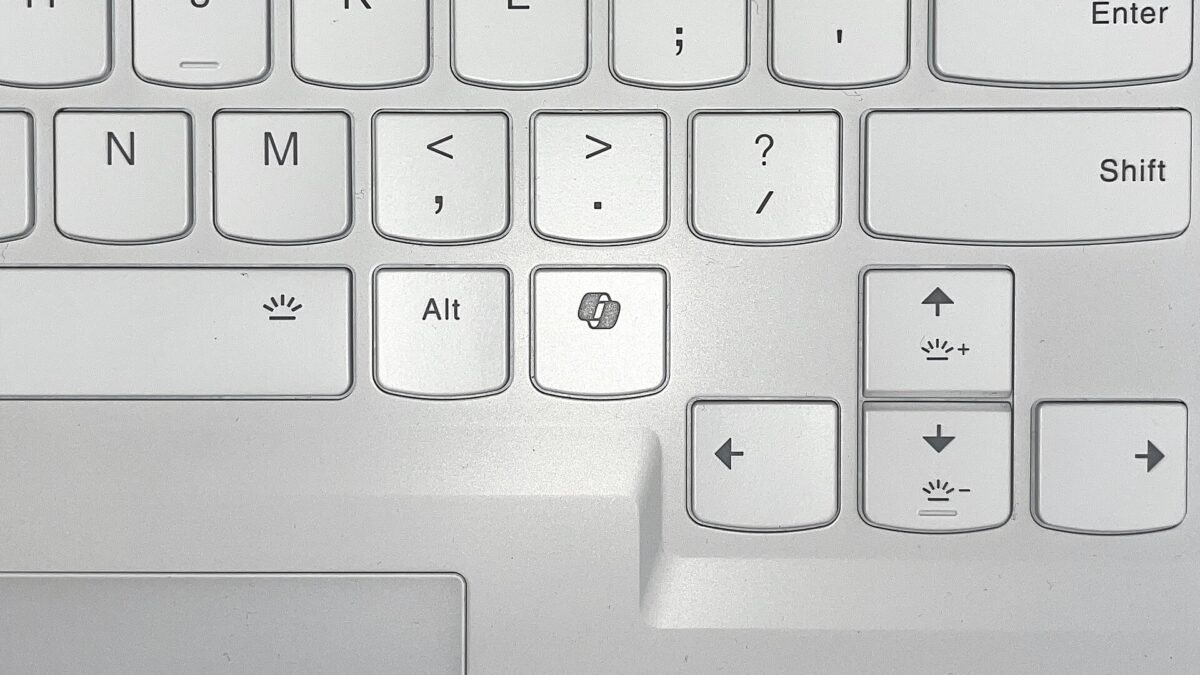
Since 2024, PC makers have shipped Windows 11 devices with a dedicated Copilot key, and on some models it takes the place of the Right Ctrl key or the Context Menu key. Microsoft acknowledges on its Copilot key support page that people who relied on those keys for shortcuts or for assistive technology such as screen readers “experienced some challenges to their workflows.”
Windows 11 now has a built-in fix. Microsoft’s release notes for the September 22, 2026 preview update (KB5124010) list a new setting that lets you remap the Copilot key to work as Right Ctrl or the Context Menu key. The October 13, 2026 security update (KB5127648) includes the improvements from KB5124010. Below are the three ways to change what the key does, the exact Settings paths from Microsoft’s documentation, and the catches that come with each one.
Three ways to change the Copilot key
| Method | Where to find it | What the key can do |
|---|---|---|
| New Windows keyboard setting | Settings > Bluetooth & devices > Keyboard | Act as Right Ctrl or as the Context Menu key |
| Copilot key app setting | Settings > Personalization > Text input > Customize Copilot key on keyboard | Open Search, the Copilot app or another app that supports it |
| Microsoft PowerToys Keyboard Manager | PowerToys > Keyboard Manager > Remap a shortcut | Send almost any key or shortcut you choose |
Some laptop makers also ship their own utility for the key. Microsoft’s advice is to use either the Windows setting or the device maker’s setting, not both.
Make the Copilot key work as Right Ctrl or Context Menu
- Install the latest update. Go to Settings > Windows Update and select Check for updates. The setting arrived with KB5124010, and Microsoft’s release notes say it applies to Windows 11 versions 24H2, 25H2 and 26H2. The October security update, KB5127648, carries the same improvements for those three versions.
- Open the keyboard settings. Microsoft’s Copilot key page gives the location: Settings > Bluetooth & devices > Keyboard.
- Choose Right Ctrl or Context Menu. Pick the key your keyboard lost. Laptops that replaced Right Ctrl get it back; laptops that replaced the Context Menu key get that one back instead.
There is one trade-off with the Right Ctrl option. Microsoft’s support page says that if you remap the Copilot key to Right Control, “shortcut combinations that include RCtrl+Win and RCtrl+Shift will not work as normal,” and it recommends using the Left Control key for those combinations. If you depend on a screen reader or another tool that needs the Context Menu key, the Context Menu option avoids that conflict.
If the setting is not on your PC yet
Microsoft lists the Copilot key setting under the “gradual rollout” part of the KB5124010 release notes. A gradual rollout, in Microsoft’s words, “delivers an update in phases, so features reach devices over time instead of all at once.” The same notes add that “feature availability depends on your device and market.” Installing the update does not guarantee the option shows up the same day.
To get these phased features sooner, Microsoft’s page on getting updates as soon as they’re available says to go to Start > Settings > Windows Update and turn on the toggle “Get the latest updates as soon as they’re available.” Microsoft says security updates arrive whether the toggle is on or off; the toggle only changes how quickly you get non-security updates, fixes and features.
Two more things to know. Microsoft’s Copilot key support page still describes the remap setting as coming in a future update, while the September release notes list it as new; go by the release notes. And if you run Windows 11 24H2 Home or Pro, the KB5124010 notes say those editions reached end of updates on October 13, 2026, which makes the October update their last one. Our guide to what ended for Windows users in October 2026 covers that change.
Make the Copilot key open an app instead
If you do not need Right Ctrl back but want the key to do something other than open Copilot, an older setting handles that. Microsoft’s documentation for managing Copilot in Windows describes it:
- Where: Settings > Personalization > Text input, then the dropdown called Customize Copilot key on keyboard.
- Options: Search, Custom, or the app currently mapped to the key. Custom opens an app picker.
- Which apps qualify: the app must be “MSIX packaged and signed,” and its developer has to register it as a Copilot hardware key provider. If an app you want is missing from the picker, Microsoft says to check with the app provider and make sure you have its latest version.
- Copilot missing from the list: Microsoft says to reinstall the Microsoft Copilot app from the Microsoft Store.
- Direct link: Microsoft lists ms-settings:personalization-textinput-copilot-hardwarekey as the address apps and scripts can use to open this page.
On work or school PCs, the same Microsoft page says IT admins can set which app the key opens through Group Policy or the SetCopilotHardwareKey CSP setting, so the option may be locked by your organization.
PowerToys: the fallback for anything else
Microsoft’s PowerToys Keyboard Manager can make a key or shortcut send a different key, shortcut or text, which covers cases the Windows setting does not, such as making the Copilot key act as a key other than Right Ctrl or Context Menu. Microsoft’s PowerToys documentation notes that the Copilot key actually sends a shortcut, “Win + C or Left-Shift + Windows key + F23,” so it is remapped as a shortcut rather than a single key.
The same documentation lists limits worth knowing before you rely on it:
- PowerToys “must be running in the background” with Keyboard Manager enabled; if PowerToys is closed, the remap stops working, and it does not apply on password screens such as sign-in.
- Remapping does not work in apps running as administrator unless PowerToys also runs as administrator.
- Microsoft says Keyboard Manager “shouldn’t be used when playing video games,” because intercepting key presses affects frame rates.
- Remapping keys such as Win, Ctrl, Alt or Shift “may break gestures and some special keys.”
For restoring Right Ctrl or the Context Menu key, the built-in Windows setting is the simpler route once it reaches your PC, because it does not depend on a separate app running in the background.
Which option to use
| Your situation | What to do |
|---|---|
| You miss Right Ctrl for shortcuts | Settings > Bluetooth & devices > Keyboard, choose Right Ctrl, and use Left Ctrl for RCtrl+Win and RCtrl+Shift combinations. |
| You use a screen reader or need the Context Menu key | Same setting, choose Context Menu. |
| You want the key to open Search or another app | Settings > Personalization > Text input > Customize Copilot key on keyboard. |
| The Keyboard option has not appeared | Install the latest update, turn on “Get the latest updates as soon as they’re available” and check again later; the feature is rolling out gradually. |
| Your laptop maker has its own key utility | Use either that utility or the Windows setting, not both. |
| You want the key to send something else entirely | Use PowerToys Keyboard Manager, but turn it off for games. |
If you are shopping for a new laptop and the key layout matters to you, check the keyboard photos on the spec page: our piece on what to check now that Microsoft dropped the Copilot+ PC label covers the rest of the spec sheet.
How we checked: we read Microsoft’s release notes for KB5124010 (September 22, 2026) and KB5127648 (October 13, 2026), Microsoft Support’s pages on the Copilot key and on getting updates as soon as they’re available, Microsoft Learn’s documentation on managing Copilot in Windows, and the PowerToys Keyboard Manager documentation. We also read coverage from Winaero and Pureinfotech. DecodeGear did not test the setting on a PC; the steps follow Microsoft’s published documentation.
Leave a Reply