How to Speed Up Your Home Wi-Fi in 2026 — A Step-by-Step Fix Guide
WI-FI GUIDE
If you’re wondering how to speed up Wi-Fi at home in 2026, you’re not alone. The average American household now runs more than 20 connected devices simultaneously — smart TVs, laptops, phones, tablets, smart speakers, security cameras, and an ever-growing fleet of IoT gadgets. Most home routers were never designed for that kind of demand, and the result is the buffering, lag, and dead zones that make modern life quietly miserable.
The good news: most Wi-Fi problems are fixable without spending a dime. The root causes almost always come down to placement, channel congestion, outdated firmware, or a single bad setting. Before you call your ISP or drop $300 on a new mesh system, work through this guide in order. Each fix is ranked by impact and ease — start from the top and stop when your speeds are acceptable.
A few fixes do require hardware upgrades, but they’re the exception. For the majority of households, the combination of steps 1 through 6 below is enough to reclaim the performance you’re already paying for. Let’s get into it.
1. Restart Your Router and Modem
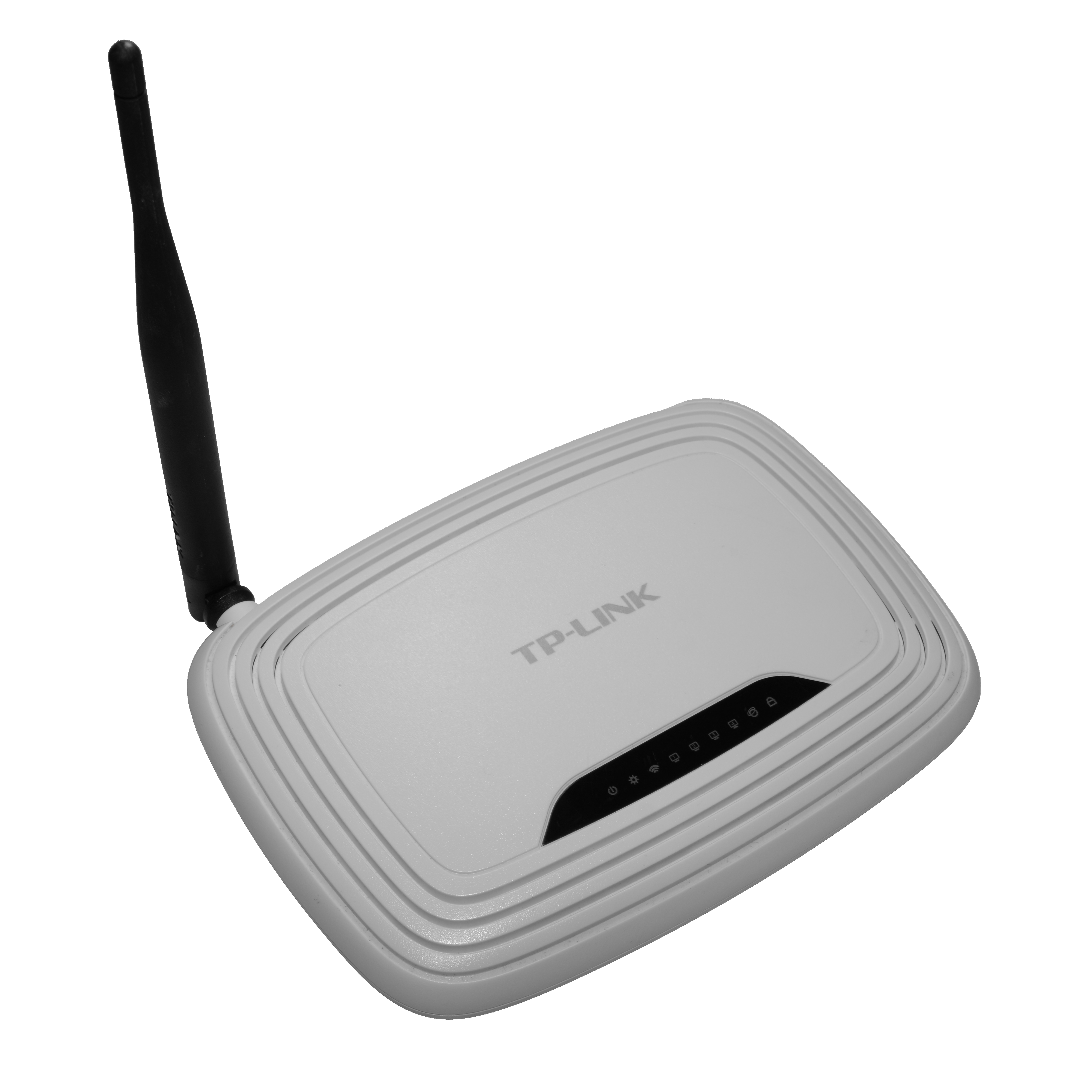
This sounds too simple to matter. It isn’t. Routers run a real operating system, and like any OS, they accumulate memory leaks over weeks of continuous uptime. Restarting clears those leaks, forces your router to re-scan for the least congested wireless channel, refreshes DHCP leases, and drops stale client connections that are hogging table entries.
The right way to do it: unplug your modem first, wait 30 seconds, then unplug your router. Wait another 30 seconds. Plug the modem back in, wait for it to fully connect (the online light should stabilize), then power the router back on. This sequence matters — if the router comes up before the modem has a valid IP, it may assign itself a bad gateway. Do this once a month as routine maintenance.
2. Move Your Router to a Central, Elevated Location
Wi-Fi signals radiate outward in all directions from the antenna. If your router is stuffed in a corner closet or sitting on the floor behind the TV, you’re deliberately wasting half that signal on walls and empty space. The goal is to place the router as close to the geometric center of your home as possible, elevated to roughly desk height or higher.
Every wall the signal passes through costs you 10–25% of signal strength. Concrete and brick are the worst offenders; drywall is more forgiving. Avoid placing the router near microwaves (they operate at 2.4 GHz and cause direct interference), cordless phones, and baby monitors. A router on an open shelf in a central hallway will outperform the same router locked in a cabinet in a corner — every single time.
3. Switch to the 5 GHz Band (or 6 GHz if You Have Wi-Fi 6E/7)
Most modern routers broadcast on two bands: 2.4 GHz and 5 GHz. Many people never leave the 2.4 GHz band because that’s what their devices connected to first. Here’s the difference: 2.4 GHz travels farther and penetrates walls better but tops out around 450 Mbps in practice and is heavily congested in apartment buildings. 5 GHz is faster — often 2–4× in real-world throughput — but has a shorter effective range.
The rule of thumb: use 5 GHz for devices within 30 feet of the router (streaming boxes, gaming consoles, laptops). Use 2.4 GHz for distant devices or those that only need occasional connectivity (smart plugs, sensors, printers). If your router supports Wi-Fi 6E or Wi-Fi 7, you also have access to the 6 GHz band, which is currently so uncongested it feels like having a private highway. Connect your highest-demand devices there first.
4. Change Your Wi-Fi Channel
Within each band, Wi-Fi operates on discrete channels. On 2.4 GHz, channels 1, 6, and 11 are the only non-overlapping options in the US — if you’re on any other channel number, you’re overlapping with neighboring networks and causing interference with yourself. In dense apartment buildings, all three non-overlapping channels may be saturated.
To find the least congested channel, download Wi-Fi Analyzer on an Android device (free on the Play Store) or use the built-in Wireless Diagnostics tool on a Mac (hold Option and click the Wi-Fi icon in the menu bar). Both show you a visual map of nearby networks and which channels they’re using. Then log into your router’s admin panel — typically at 192.168.1.1 or 192.168.0.1 — and manually set your 2.4 GHz channel to whichever of 1, 6, or 11 has the least competition. On 5 GHz, automatic channel selection is generally reliable because the band has far more non-overlapping channels.
5. Update Your Router’s Firmware
Router firmware updates are unglamorous but important. Manufacturers regularly push fixes for performance regressions, memory management bugs, and security vulnerabilities — and older routers running factory firmware from 2020 or 2021 may be missing years of optimizations. Log into your admin panel and look for a “Firmware Update” or “Software Update” section. Most routers made after 2022 support automatic updates; enable that if it’s available.
If your router’s manufacturer no longer publishes firmware updates for your model, that’s a strong signal the hardware is end-of-life. That leads naturally into step 8.
6. Enable QoS (Quality of Service)
QoS is a feature that lets your router intelligently prioritize different types of traffic. Without it, a family member downloading a 20 GB game update in the background can saturate your upload channel and make your video call unwatchable — even if your raw bandwidth is technically sufficient. With QoS enabled, you tell the router to deprioritize bulk transfers and protect real-time traffic like video conferencing and gaming.
Find QoS in your router’s admin panel — it’s usually under “Advanced,” “Traffic Management,” or “QoS Settings.” Most modern routers let you prioritize by device or by application type. At minimum, set video calls and gaming to “Highest” priority and file transfers or streaming downloads to “Normal” or “Low.”
7. Use a Wired Ethernet Connection for Gaming and Streaming
This is the most effective single fix on the list, and it costs about $15. Wi-Fi — even the best Wi-Fi — introduces variable latency (jitter) because the signal has to contend with interference, competing devices, and the physical environment. A wired Ethernet connection has none of those variables. Latency drops, packet loss disappears, and speeds become consistent instead of fluctuating.
For desktop PCs, gaming consoles, and smart TVs that stay in one place, run a Cat 6 cable from the device to your router or a network switch. If running cable through walls isn’t practical, look into MoCA adapters (which use your existing coaxial cable lines) or powerline adapters as middle-ground options. Neither is as good as a direct Ethernet run, but both beat Wi-Fi for stability.
8. Upgrade to a Wi-Fi 6 or Wi-Fi 7 Router if Your Hardware Is 5+ Years Old
Wi-Fi 5 (802.11ac) routers released before 2020 were designed for a world where a household might have 6–8 devices. They handle 20+ devices poorly because they lack OFDMA — a technology introduced with Wi-Fi 6 that lets the router communicate with multiple devices simultaneously on the same channel rather than taking turns.
Wi-Fi 6 routers start around $80–120 and handle dense device environments dramatically better. Wi-Fi 7 (802.11be) is now widely available, adds 320 MHz channels and Multi-Link Operation (MLO), and is the right choice if you’re building a network you want to last through 2030. If you’re also setting up a smart home network with dozens of IoT devices, Wi-Fi 6 or 7 isn’t optional — it’s the baseline.
9. Add a Mesh Node or Wi-Fi Extender for Dead Zones
If certain rooms in your home have poor coverage no matter where you place the main router, you need to extend the network. The important distinction here: mesh systems are significantly better than traditional Wi-Fi extenders. Extenders receive the signal and re-broadcast it on the same band, which cuts available bandwidth roughly in half. Mesh nodes use a dedicated backhaul channel (either a separate radio or a wired connection) to communicate with the main router, so client devices get close to full speed.
The TP-Link Deco series is a strong budget option at around $80 for a two-pack. For larger homes, the Eero or Orbi lines offer better backhaul performance. Place mesh nodes where you still have a decent signal from the main router — not in the dead zone itself, but halfway between the router and the dead zone. That placement maximizes the quality of the backhaul link.
10. Check Whether Your ISP Is the Bottleneck
Before blaming your router or home network, confirm that the problem actually originates inside your house. Run a speed test at fast.com (Netflix’s tool, tests download) or speedtest.net (tests both upload and download, plus latency). Run the test on a device connected via Ethernet directly to your modem, bypassing the router entirely.
If those numbers match your subscribed plan speed, your ISP is delivering what you’re paying for — the problem is internal, and the steps above will fix it. If the numbers are significantly below your plan (say, you’re paying for 500 Mbps and getting 80 Mbps wired), call your ISP. The issue may be a degraded line, a failing modem, or congestion in their infrastructure during peak hours. This is also a good time to check if a better plan or provider is available in your area — ISP competition has increased significantly in 2025–2026 with expanded fiber rollouts.
For more performance wins on your devices themselves, see our guide on how to speed up a slow laptop — sometimes the bottleneck is the endpoint, not the network.
Final Thoughts
Most home Wi-Fi problems have simple, free solutions. Start with the restart, fix the router placement, switch to 5 GHz, and update the firmware — those four steps alone resolve the majority of cases. Work down the list only as far as you need to. If you reach step 8 or 9, you’re dealing with a genuine infrastructure gap, and the hardware investments are well worth it. A well-configured network in 2026 should deliver consistent, low-latency speeds to every room of your home. If it doesn’t, now you know exactly what to fix.
Learn how to speed up Wi-Fi at home in 2026 with 10 proven fixes — from router placement and channel switching to mesh systems and firmware updates.
Leave a Reply