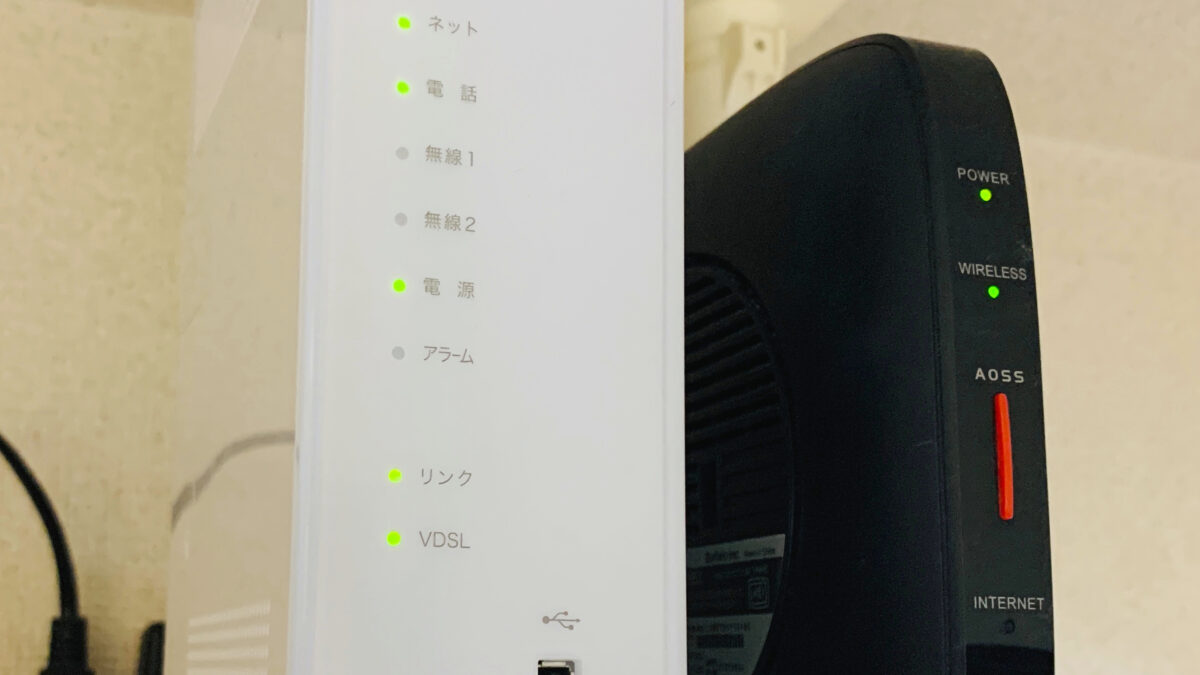
You’ve done the ritual before: Wi-Fi crawls to a halt, you unplug the router, count to ten, plug it back in, and — like magic — everything works again. It’s the “have you tried turning it off and on again” of home networking, and it works often enough that most people never stop to ask why. Here’s what’s actually happening inside that little box, and — more usefully — how often you should be doing it on purpose instead of waiting for things to break first.
What You’ll Learn
This guide covers why rebooting actually fixes things (it’s not magic), how often to do it proactively, the difference between a reboot and a full factory reset, and a few signs that mean your router needs more than a restart — it needs replacing.
Why Rebooting Actually Fixes Your Wi-Fi
Every router is a small computer, and like any computer, it accumulates junk while it runs. When it boots, the processor loads everything it needs into working memory. Over days or weeks of continuous operation — handling every device’s connection requests, every DNS lookup, every background app pinging the internet — that memory fills up with accumulated processes and cached data that never gets cleared. Once there’s no working room left, the processor slows down, and so does every wired and wireless connection running through it. A reboot wipes that memory clean and gives the processor a fresh start, which is why the fix feels so reliably effective even though nothing was technically “broken.”
There’s a second mechanism at play: IP address synchronization. Your internet provider assigns your router a temporary IP address, and that address can change without warning. When the router doesn’t notice the change immediately, your connection gets out of sync with your ISP’s network — technically still “connected” but effectively stalled. A reboot forces the router to request a fresh address and resync properly.
The third piece is channel congestion, which matters more if you live in an apartment building or a dense neighborhood. Wi-Fi operates on specific channels, and if enough of your neighbors’ routers are crowding the same ones yours uses, speeds degrade even though your own hardware is working fine. Most modern routers are capable of detecting less congested channels and switching automatically — but many only actually do that check on boot, not continuously in the background. Rebooting nudges it into finding a quieter channel.
How Often You Should Actually Reboot
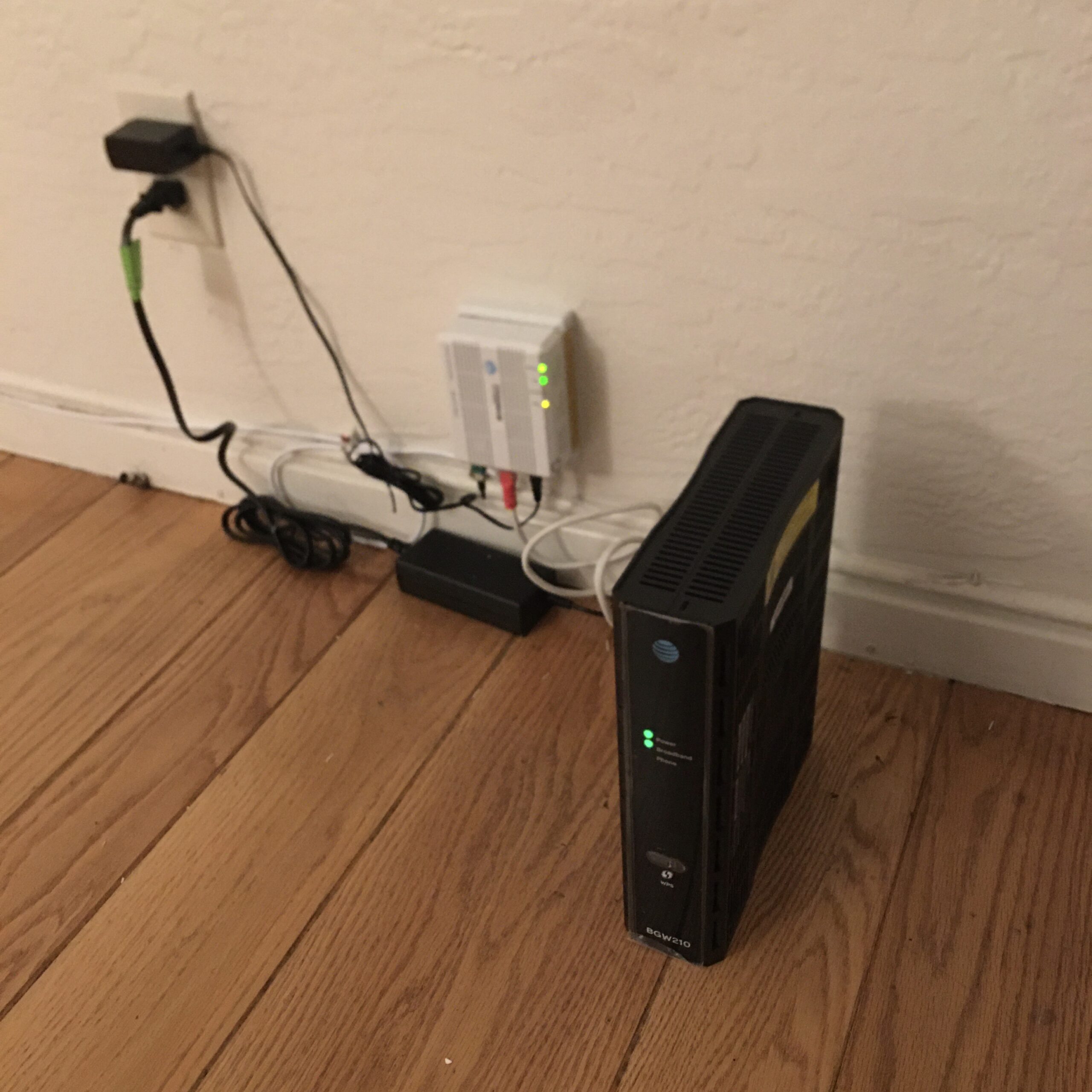
The honest answer: once a month is a reasonable default for most households, and more often if you’re running a lot of connected devices — smart home gear, multiple streaming boxes, a NAS, a dozen phones and laptops between family members. If you’re the kind of household that’s running a home NAS setup alongside everything else, monthly might not be often enough; consider setting a recurring reminder every two weeks instead, since more connected devices means memory and connection tables fill up faster.
You don’t have to remember to do this manually, either. Many routers let you schedule automatic reboots in their admin settings — usually buried under “System” or “Maintenance” — set for a low-traffic window like 4 a.m. so it never interrupts anything you’re actually doing. If your router doesn’t support scheduled reboots natively, a cheap smart plug on a timer is a legitimate workaround: cut power for 30 seconds on a schedule, and you get the same effect without touching the admin panel.
Pro Tip: Reboot Isn’t the Same as Reset
This trips people up constantly, and it’s worth being precise about, because getting it wrong costs you your whole network configuration. A reboot is a power cycle — the router turns off and back on, clears its working memory, and reloads exactly the same settings, Wi-Fi name, and password you already had. A factory reset wipes everything back to out-of-the-box defaults, meaning you’ll need to reconfigure your network name, password, port forwarding, and any custom settings from scratch. If you’re just trying to fix slow Wi-Fi, you want a reboot — holding the reset pinhole button is a different, much more drastic tool, and it’s not the first thing to reach for.
When a Reboot Isn’t Enough
If you’re rebooting weekly (or more) just to keep things usable, that’s not a maintenance habit anymore — it’s a symptom. A router that needs constant restarts to function is usually telling you one of a few things: its firmware is out of date and needs a manual update, it’s simply undersized for how many devices and how much bandwidth your household actually uses now versus when you bought it, or the hardware itself is aging out and struggling to keep up. We covered whether upgrading to Wi-Fi 7 is actually worth it if you’re at the point of considering new hardware rather than another reboot — the short version is that most households benefit more from a modern Wi-Fi 6 router than from chasing the newest standard.
Before you jump straight to a full replacement, though, it’s worth ruling out the cheaper fixes first. Our full guide to speeding up home Wi-Fi walks through router placement, interference sources, and firmware updates — all things that can make an aging router perform noticeably better without spending a dollar, and all worth trying before you conclude the hardware itself is the problem.
FAQ
Does rebooting my router delete my Wi-Fi password or settings?
No. A reboot is a simple power cycle — it clears temporary memory and reloads your existing configuration exactly as it was. Your network name, password, and settings stay intact. Only a factory reset wipes those.
Can I schedule automatic reboots instead of doing it manually?
Yes, if your router supports it — check the admin panel under System or Maintenance settings for a scheduled reboot option, usually set for an overnight low-traffic window. If your router doesn’t support it natively, a smart plug on a timer achieves the same result.
Is it bad to reboot my router too often?
Not really, though there’s no benefit to doing it more than once every week or two under normal use. If you find yourself needing to reboot daily just to keep the connection usable, that’s a sign of an underlying problem — outdated firmware or aging hardware — not something more frequent rebooting will solve long-term.
Will unplugging my router and modem together work better than just the router?
If you have a separate modem and router, power-cycling both together (modem first, wait 30 seconds, then router) resolves more issues than rebooting the router alone, since it also forces a fresh handshake with your ISP at the modem level, not just inside your home network.
Leave a Reply