The moment most people start thinking seriously about a NAS is the moment they’ve already lost something — a drive failed, a laptop got stolen, or a “the cloud will handle it” assumption turned out to be wrong. A network-attached storage device solves the problem before it happens: one box on your home network that backs up every computer, phone, and camera you own, automatically, without a monthly subscription eating into the value over time.
What You’ll Learn
This guide covers what a NAS actually does differently from cloud storage or an external drive, how to size one for a real household, what “NAS-rated” hard drives mean and why they matter, and the basic backup strategy that makes the whole setup worth the money.
NAS vs. Cloud vs. External Drive
An external drive is cheap and simple but it’s a single point of failure — drop it, and everything on it is gone. Cloud storage (Google Drive, iCloud, Dropbox) is convenient and off-site, but the recurring cost adds up fast once you’re storing terabytes of photos and video, and you’re trusting a third party with data you can’t physically touch. A NAS splits the difference: it lives in your house, has no subscription fee beyond the electricity to run it, and — critically — most models run two or more drives in a mirrored configuration, so a single drive failure doesn’t cost you anything. The tradeoff is an upfront cost of $300-600 for the enclosure plus drives, versus $0 to start a cloud plan.
Sizing: 2-Bay vs. 4-Bay
For most households, a 2-bay NAS is the right starting point. Two drives running in RAID 1 (mirrored) give you redundancy — if one drive dies, your data survives on the other while you replace it — at the cost of only getting to use half your total raw storage. A 4-bay unit makes sense if you’re archiving large video libraries, running a Plex media server for the whole house, or want more flexible RAID options that sacrifice less capacity to redundancy. Unless you already know you need the extra bays, start with 2 — you can always add a second NAS later, but you can’t easily shrink an over-provisioned one.
Why “NAS-Rated” Drives Actually Matter
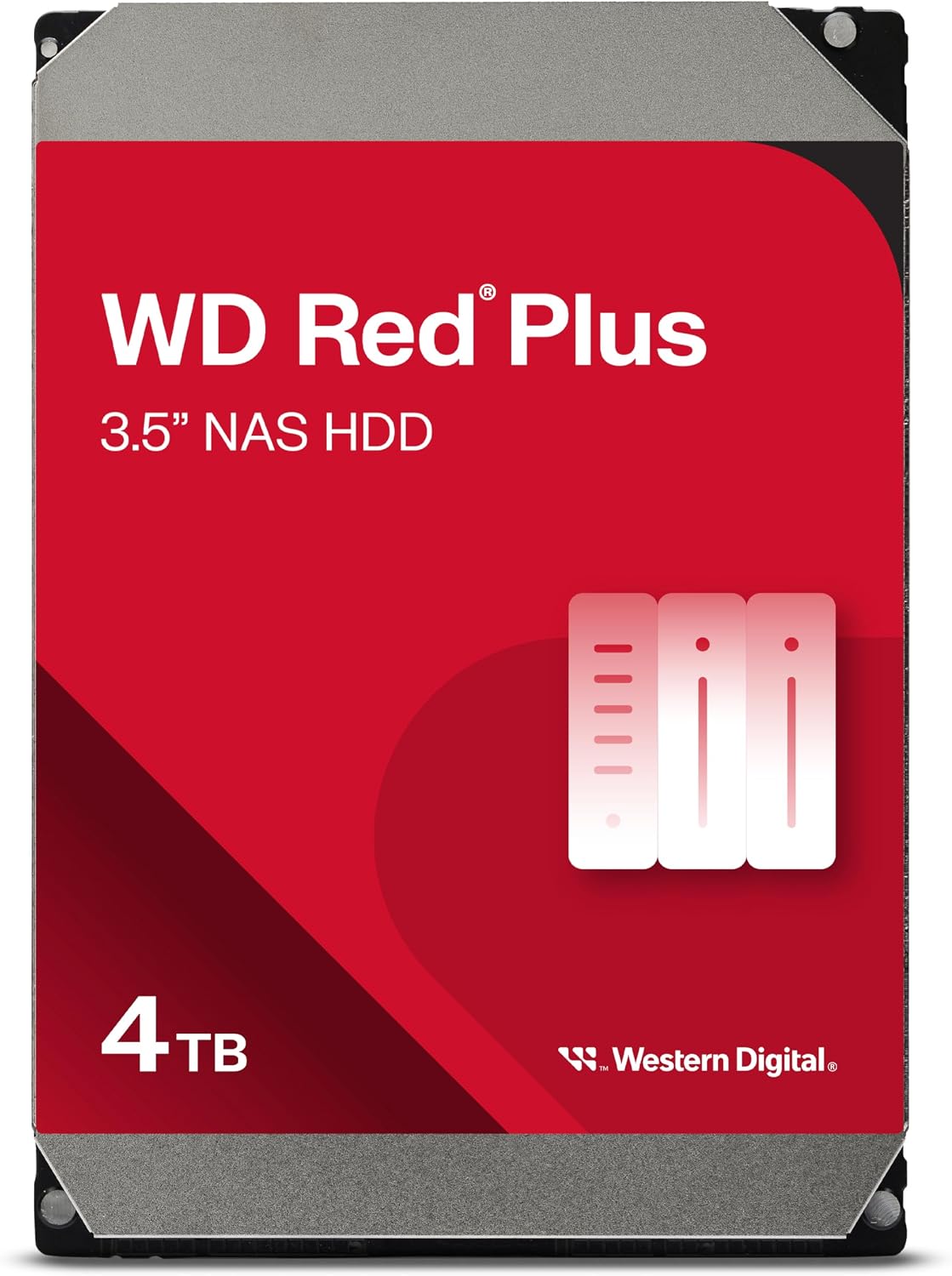
This is the step people skip and regret. A regular desktop hard drive isn’t built to run 24/7 in a multi-drive enclosure — NAS-specific drives like WD Red Plus or Seagate IronWolf use CMR (Conventional Magnetic Recording) instead of SMR (Shingled Magnetic Recording), which handles the constant read/write patterns of RAID without the severe slowdowns SMR drives suffer under sustained NAS workloads. NAS drives also include TLER (Time-Limited Error Recovery), which tells the drive to give up on a bad sector quickly instead of retrying for minutes, so your RAID array doesn’t get kicked offline over one glitchy sector. A WD Red Plus 4TB drive is the safe default for a first build — buy two if you’re setting up RAID 1 mirroring.
Pro Tip: Follow the 3-2-1 Rule
A NAS alone isn’t a complete backup strategy — it’s one very good copy. The industry-standard approach is 3-2-1: three copies of your data, on two different types of storage media, with one copy stored off-site. In practice for a home setup, that means your live files on your computer (copy 1), automatically synced to your NAS (copy 2, different medium), with the NAS itself set to sync critical folders to a cheap cloud tier like Backblaze B2 or a family member’s NAS across town (copy 3, off-site). Skipping the off-site copy is the most common mistake — a NAS protects you from a failed drive, not from a house fire or flood.
Picking Your First NAS
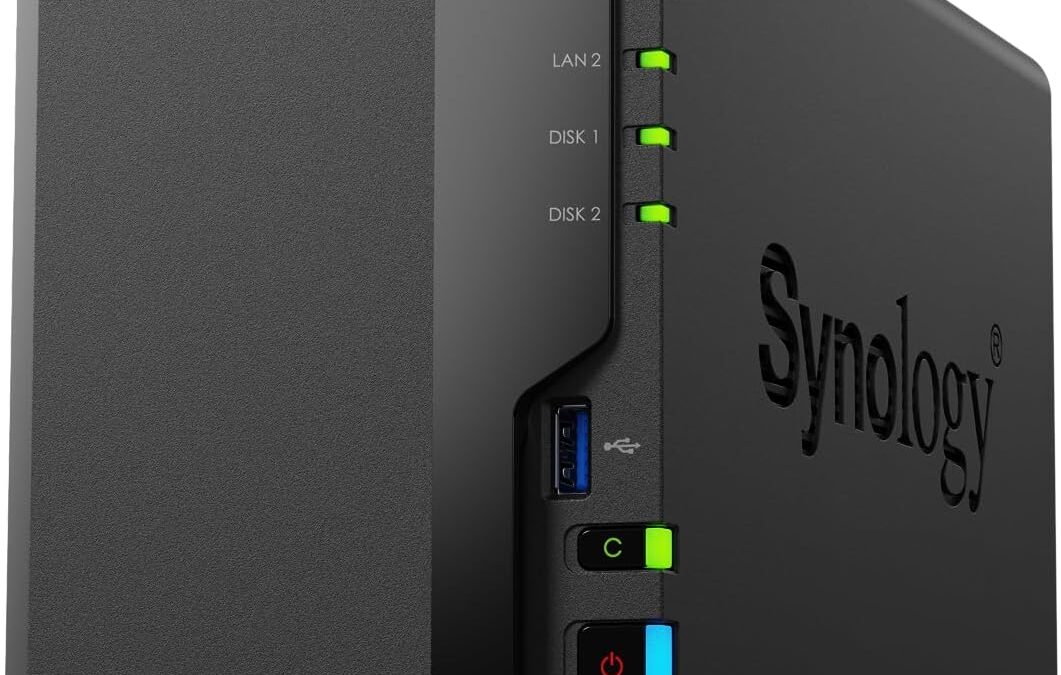
For a first-time home setup, the Synology DS224+ is the enclosure we’d point most people toward — Synology’s DSM software is genuinely easy to use even if you’ve never touched a NAS before, with mobile apps that handle automatic phone photo backup out of the box. It ships diskless, so budget for two NAS-rated drives sized to your needs — two 4TB drives in RAID 1 gets you 4TB of usable, mirrored storage for well under $800 total.
If you’re deciding between a NAS and a simpler local storage upgrade first, our NVMe vs SATA vs external SSD guide breaks down the faster, non-networked options, and our best external SSD picks are worth a look if you just need fast portable backup rather than a always-on home server. Since a NAS lives on your network full-time, it’s also worth checking that your router can actually handle it — see our best Wi-Fi 7 routers if yours is a few years old.
Getting It Running: What Setup Actually Looks Like
Once the enclosure and drives arrive, the process is more approachable than it sounds. You install the drives (no tools needed on most modern NAS units — they use tool-less trays), connect an Ethernet cable to your router, and power it on. From there, Synology’s DSM (and QNAP’s equivalent QTS) walks you through drive formatting and RAID setup in a browser-based wizard — you’re clicking through menus, not typing commands. Budget 30-45 minutes for the initial setup, plus however long the RAID array takes to fully sync in the background (often several hours for larger drives, though the NAS is usable during that time). After that, install the mobile app, point it at your phone’s camera roll, and photo backup runs automatically from then on — the same principle applies to setting up backup software on your computers.
Frequently Asked Questions
Do I need RAID for a home NAS?
For anything you’d be upset to lose — family photos, financial documents — yes. RAID 1 on a 2-bay NAS costs you half your raw capacity but means one drive failing doesn’t mean data loss.
Can I use regular hard drives instead of NAS-rated ones?
You can, but it’s a false economy. Desktop drives aren’t built for 24/7 multi-drive operation and lack TLER, which increases the risk of your whole RAID array dropping over a single recoverable error.
How much storage do I actually need?
Add up your current photo/video library size, double it for growth over the next 3-4 years, then round up to the nearest drive size that leaves at least 20% free space — NAS performance degrades as drives fill past 80-90%.
Is a NAS worth it if I already pay for cloud storage?
If you’re paying monthly for more than 1-2TB of cloud storage, a NAS usually pays for itself within 2-3 years and gives you a local, full-speed copy of your files — most people keep both, using cloud as the off-site leg of a 3-2-1 backup.
Leave a Reply