Most people upgrading their storage make the same mistake: they buy the fastest drive on the spec sheet without checking whether their machine can actually use that speed. If you’ve ever wondered why your “blazing fast” new SSD doesn’t feel any different from the old one, this is almost certainly why. Let’s fix that before you spend money on speed you can’t access.
You’ll walk away from this knowing exactly which of the three main SSD types — NVMe, SATA, or external/portable — actually fits your setup, and why the difference matters a lot less often than marketing wants you to think.
Disclosure: DecodeGear may earn a commission from qualifying purchases made through the Amazon links below, at no extra cost to you.
First, clear up the NVMe/M.2 confusion
This trips up more buyers than anything else on this list: M.2 is a connector shape, NVMe is a protocol. They’re not the same thing, and some M.2-shaped drives are actually SATA-based underneath, not NVMe. Before you buy an M.2 NVMe drive, check two things on your motherboard or laptop spec sheet — does it have a free M.2 slot at all, and does that slot actually support NVMe (most modern ones do, but budget and older boards sometimes have SATA-only M.2 slots). Buying a PCIe 4.0 NVMe drive for a PCIe 3.0 slot isn’t a disaster — it’ll still work — but you’re paying for bandwidth the slot physically can’t deliver.
NVMe: the real numbers, and when they actually matter
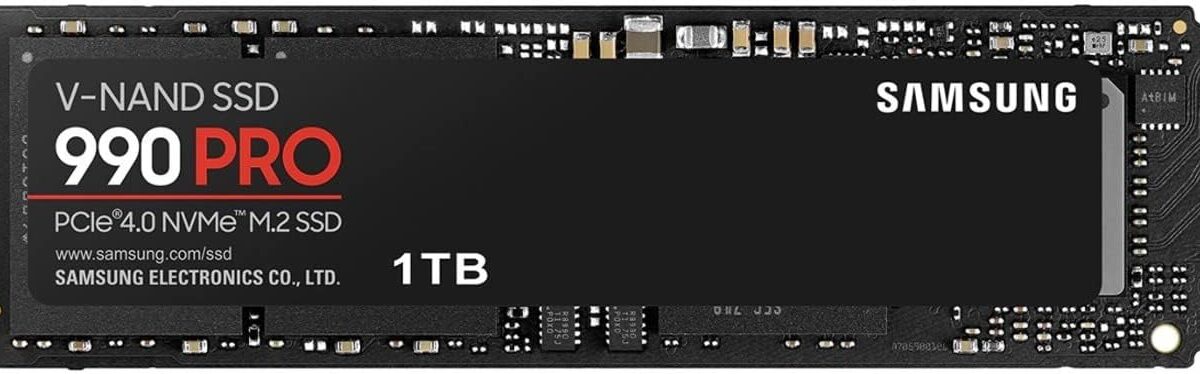
A drive like the Samsung 990 Pro pushes sequential read speeds up to 7,450 MB/s and write speeds up to 6,900 MB/s over PCIe 4.0 — genuinely enormous numbers next to SATA’s roughly 550 MB/s ceiling. But here’s the part enthusiast marketing conveniently skips: for boot time, app launches, and everyday web browsing, most people cannot reliably tell the difference between a good NVMe drive and a good SATA drive. The gap shows up almost entirely in large sequential transfers — exporting a big video project, installing a 100GB game, copying a folder of raw photo files. If that’s your daily workload, NVMe earns its price premium. If it isn’t, you’re paying for a number you’ll never personally experience.
SATA: still “good enough” for most people, and here’s why
A Crucial MX500 tops out around 560 MB/s read and 510 MB/s write — the hard ceiling of the SATA III bus itself, not a limitation of the drive. That sounds unimpressive next to NVMe’s numbers until you remember it’s still roughly 10x faster than any spinning hard drive, which is the upgrade that actually transforms a slow machine. If your laptop or desktop only has a SATA bay and no free M.2 slot, buying an NVMe drive to leave it sitting in a USB enclosure is usually the wrong move — a SATA SSD in that same bay gets you nearly all the real-world responsiveness at roughly half the cost per gigabyte.
If your machine has a free M.2 NVMe slot and you regularly move large files, this is where the extra speed actually pays off:
Endurance matters more than the number on the box
Every SSD has a TBW (terabytes written) rating — essentially how much total data you can write to the drive before it’s expected to wear out. For most home users this number is a non-issue; you’d need years of heavy, sustained writing to approach it. What actually catches people off guard is cache exhaustion: many budget drives, especially QLC-based ones, advertise a peak MB/s figure that’s only sustainable for the first few gigabytes of a transfer, after which speed drops off a cliff once the fast cache fills up. If you regularly move very large files — think hours of 4K footage — check for sustained write benchmarks, not just the marketing headline number, before you buy.
Pro tip: what most people miss about external SSDs
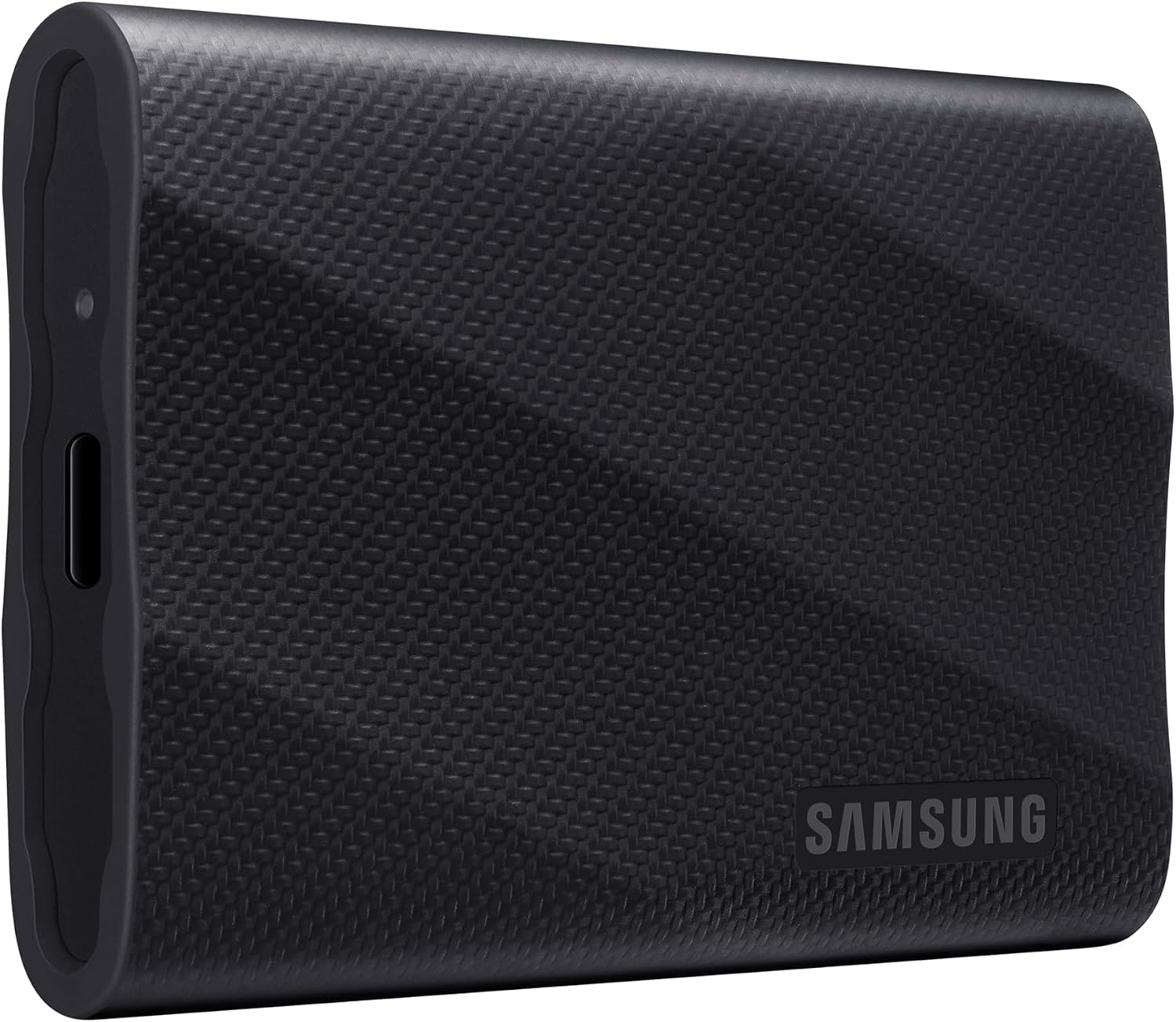
A portable drive like the Samsung T9 can hit up to 2,000 MB/s over USB 3.2 Gen 2×2 — but only if your computer’s USB-C port actually supports that same standard. Plug it into an older USB-A port or a lower-spec USB-C port, and you’ll get a fraction of the rated speed with no warning or error message; it’ll just quietly run slower. External SSDs are genuinely great for what they’re built for — backups, moving big files between machines, travel-friendly extra storage — but they’re a poor substitute for an internal boot drive. USB connections are less reliable over years of daily plug/unplug cycles than a drive mounted permanently inside your case, and that matters if you’re thinking about running your operating system off one.
For backups and moving large projects between machines, a rugged portable drive beats juggling cables:
So which one should you actually buy?
If you’re upgrading a machine that only has a SATA bay, buy SATA — you’re not leaving meaningful performance on the table, and you’ll save money you can put toward capacity instead. If you have a free NVMe-capable M.2 slot and you genuinely move large files often (video editing, large game libraries, big dataset work), NVMe is worth the premium. If you need storage that travels with you or backs up multiple machines, get a portable SSD and just confirm your port actually supports its rated speed before you count on it.
If you’re assembling a full rig around whichever drive you land on, our step-by-step budget gaming PC build guide walks through the rest of the parts list. And if portable storage is specifically what you’re after, we go deeper on the category in our best external SSDs roundup — worth a read before you commit to one drive. Storage isn’t the only place tiny hardware is punching above its weight lately, either; we cover that broader trend in our look at the mini PCs replacing full towers for a lot of buyers this year.
Frequently Asked Questions
Will I actually notice the difference between NVMe and SATA in everyday use?
For most everyday tasks — booting up, opening apps, browsing — no, not reliably. The difference shows up almost entirely in large, sustained file transfers, not in how “snappy” the machine feels day to day.
Can I put an NVMe drive in a SATA-only M.2 slot?
No — NVMe and SATA M.2 drives use different signaling (PCIe vs SATA) and generally aren’t interchangeable even though the physical connector looks identical. Always check your slot’s supported protocol before buying, not just the connector shape.
Is it worth buying a PCIe 5.0 drive right now?
Only if your motherboard actually has a PCIe 5.0 M.2 slot and your workload genuinely saturates PCIe 4.0 speeds already — which describes very few home users in 2026. For almost everyone, a PCIe 4.0 drive like the 990 Pro is the better value today.
How much storage do I actually need?
1TB is a comfortable modern baseline for a primary drive with an OS, apps, and a modest game library. Heavy gamers or creators moving large video files should look at 2TB or pair a smaller fast NVMe boot drive with a larger SATA or external drive for bulk storage.
Leave a Reply