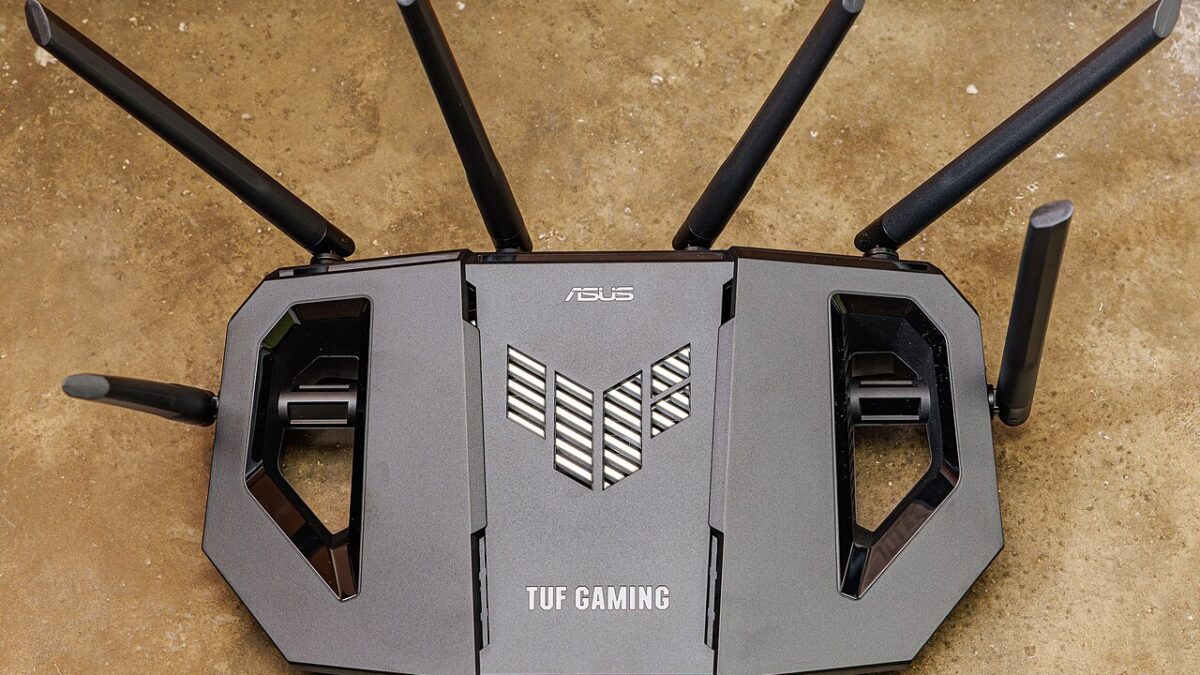
If your connection feels fine all day and then crawls right when you sit down to stream or game in the evening, you’re not imagining it. Slow nighttime Wi-Fi is one of the most common household tech frustrations — and it usually comes down to a handful of causes you can actually address. Here’s what’s happening between 7 and 11 p.m., how to diagnose it in ten minutes, and how to fix it, from the easy wins to the deeper adjustments.
Everyone gets online at the same time
Evenings are the internet’s rush hour. Between roughly 7 and 11 p.m., your entire neighborhood is streaming, gaming, and video-calling at once. On shared connections — especially cable/DOCSIS, where a local segment is split among many homes — that surge creates congestion, and everyone’s speeds dip together. This is the single most common reason your nighttime speeds fall below what you get at 3 in the afternoon.
The math adds up fast. A single 4K stream wants roughly 15 to 25 Mbps of steady bandwidth. Add a second TV, a console pulling down a 100 GB game update, a few phones scrolling video, and a cloud backup that kicks off on a schedule, and one household can saturate a mid-tier plan all by itself. Now multiply that by every home on your street doing the same thing at the same hour.
Fiber connections tend to hold up much better in the evening because each home gets a dedicated line back to the network instead of sharing a local segment. If you’re on cable in a dense neighborhood, some peak-hour dip is baked into the technology itself — which is why the fixes below focus on making sure your own network isn’t adding a second bottleneck on top of it.
Wi-Fi interference spikes too
More devices awake in the evening means more competing radio signals. The old 2.4GHz band is especially crowded: it’s slow, long-range, and shared with your neighbors’ networks, microwaves, Bluetooth gadgets, and a growing pile of smart-home devices. The result is packet collisions and stutter that get worse exactly when usage peaks.
Smart homes make this worse than most people realize. A typical connected household now runs 20 or more Wi-Fi devices, and most smart plugs, bulbs, and cameras still ship as 2.4GHz-only hardware. Every one of them chirps away in the background on the same narrow slice of spectrum your laptop is trying to use. If the gadgets themselves feel laggy too, we’ve covered why your smart home feels slow and how to actually fix it in a separate guide.

The fixes, from easiest to most involved
1. Use the faster bands
Connect your important devices — TV, console, work laptop — to the 5GHz (or 6GHz on Wi-Fi 6E/7) band, which is much faster and far less congested than 2.4GHz. Save 2.4GHz for distant, low-bandwidth gadgets like smart plugs. On many routers you can give each band its own network name (say, “Home” and “Home-5G”), which makes it easy to force every device onto the right one and keep it there.
2. Change your Wi-Fi channel
Routers often ship on a default channel that everyone nearby is also using. In your router settings, switch to a less crowded channel — on 2.4GHz, stick to channels 1, 6, or 11, since those are the only three that don’t overlap each other. A free Wi-Fi analyzer app on your phone will show you exactly which channels your neighbors are camped on. This alone can noticeably reduce evening interference, especially in apartment buildings where a dozen networks fight over the same air.
3. Turn on QoS
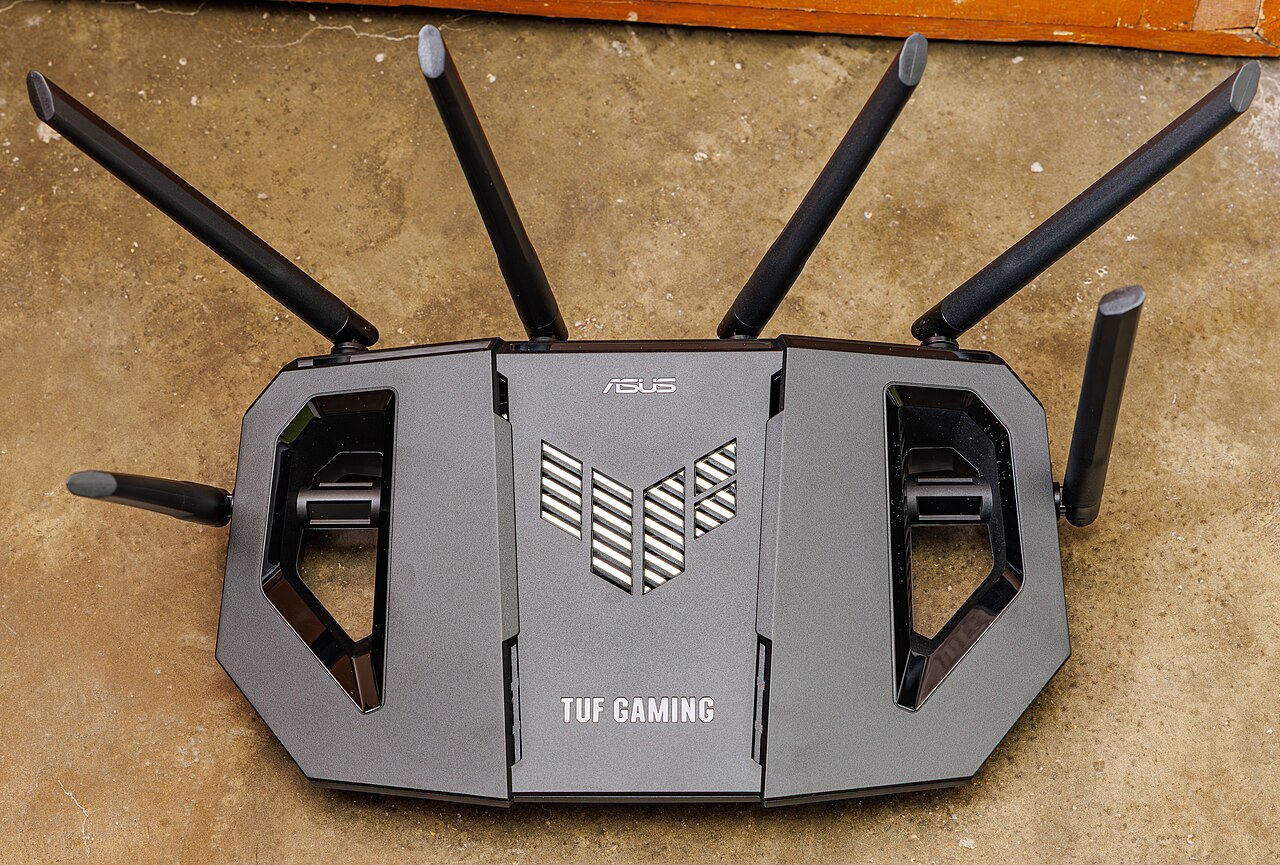
Quality of Service lets you prioritize specific traffic — say, video calls or gaming — so they stay smooth even when the network is busy. It won’t create more bandwidth, but it makes sure the important stuff gets served first. Most modern mid-range routers hide a basic QoS toggle in their advanced settings, and gaming-oriented models like the Asus RT-AX86U Pro (around $200) build it in with one-click game and device prioritization.
4. Fix placement and dead zones
A router stuffed in a closet or behind the TV radiates poorly. Put it central, elevated, and out in the open — a shelf in the main living area beats the floor of a corner office every time. Thick walls, mirrors, fish tanks, and large metal appliances all eat signal, so keep the router away from them.
If your home is large or has thick walls, a mesh Wi-Fi system beats a single router by blanketing the space in consistent signal — the most effective fix for whole-home dead zones. The TP-Link Deco XE75 (around $250 for a two-pack) is a well-reviewed Wi-Fi 6E mesh that covers most mid-size homes, while the Amazon Eero 6+ three-pack (around $200) is the easiest option to set up if you just want something that works out of the box.
5. Reboot and update
Routers are little computers that benefit from an occasional restart, and outdated firmware can cause slowdowns and security holes. A monthly reboot and keeping firmware current is basic hygiene. Many routers can schedule an automatic reboot in the middle of the night — turn that on once and forget about it.
6. Retire hardware that’s past its prime
If your router is a Wi-Fi 5 (802.11ac) model from the late 2010s — or the aging combo unit your ISP handed you at installation — it simply can’t juggle a modern houseful of devices at peak hours. Wi-Fi 6 handles crowded networks dramatically better thanks to smarter traffic scheduling, and entry pricing is low now: the TP-Link Archer AX55 (around $99) is one of the highest-impact sub-$100 upgrades in home tech. Router upgrades also hold their value year-round — they’re exactly the kind of purchase we flagged in our roundup of tech upgrades still worth buying after the sales end.
When it’s not your equipment
If speeds tank every night no matter what you change, the bottleneck may be your ISP — either genuine peak-hour congestion on their end or, in some cases, throttling. Diagnose it simply: run a wired speed test (plugged directly into the router) at 3 p.m. and again at 9 p.m. If wired speeds also collapse at night, it’s your provider, not your Wi-Fi — and that test result is exactly the ammunition you need when you call to complain or shop for a better plan.
To build a stronger case, repeat the two-test routine for a week and note the numbers. A consistent pattern — say, 400 Mbps in the afternoon dropping to 90 Mbps every evening on a wired connection — is hard for a support rep to wave away, and it’s the kind of evidence that gets escalations, bill credits, or an honest answer about whether your neighborhood node is oversubscribed. If fiber is available at your address, that same log makes the switching decision easy.
Quick FAQ
Does my ISP really throttle at night?
Deliberate speed-tier throttling is less common than plain congestion, but some providers do deprioritize heavy traffic like video at peak times. The wired 3 p.m. vs. 9 p.m. test can’t tell you which one is happening — but it does prove the problem is upstream of your router, which is what matters.
Will a mesh system make my internet faster?
Mesh fixes coverage, not capacity. It can deliver the speed you already pay for to rooms that used to be dead zones, but it can’t push past your plan’s limit or fix ISP congestion. If wired tests are fine at night and Wi-Fi isn’t, mesh helps; if wired tests collapse too, it won’t.
Should I just use Ethernet?
For anything stationary and bandwidth-hungry — a desktop PC, a console, a streaming box — yes. Every device you move to a cable is a device that stops competing for airtime, which quietly speeds up Wi-Fi for everything else in the house.
The bottom line
Most nighttime slowdowns are a mix of peak congestion and Wi-Fi interference, and the majority are fixable from your router’s settings in ten minutes: move to 5/6GHz, pick a clean channel, enable QoS, and place the router well. If those don’t do it, a wired test will tell you whether it’s time for a mesh upgrade or a hard conversation with your ISP.
Leave a Reply