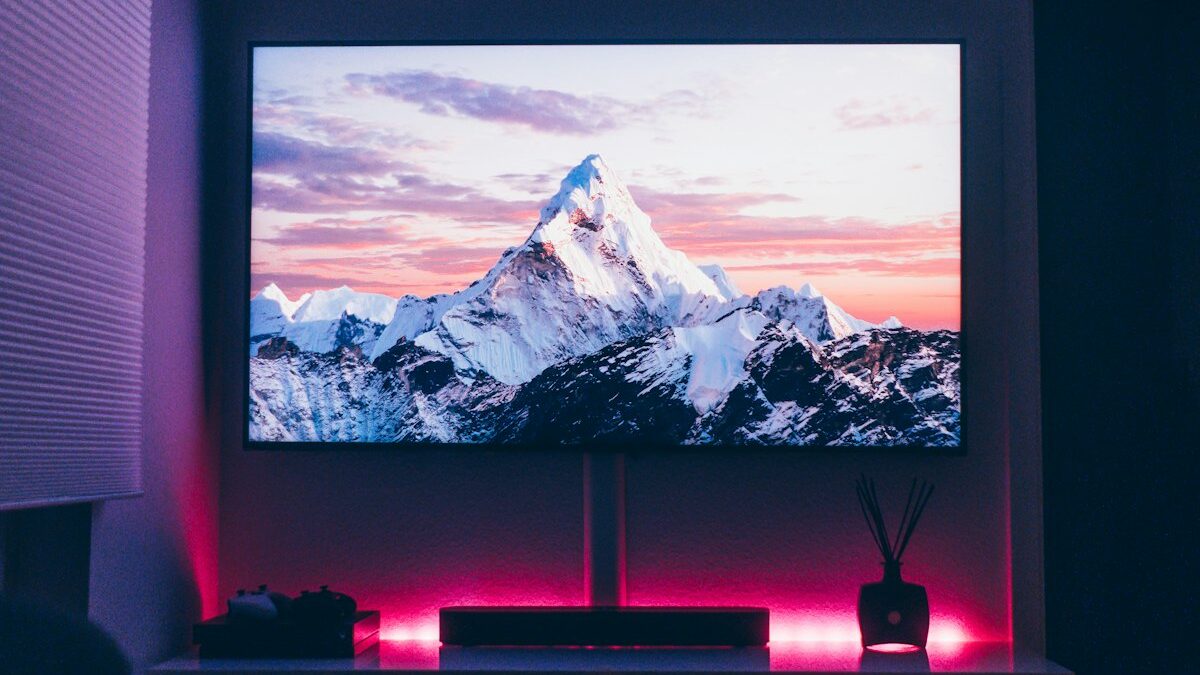
TV spec sheets have become a battlefield of acronyms. Here’s what each one actually means for your living room — and which ones you can safely ignore.
Knowing how to pick a smart TV in 2026 means learning to separate signal from noise. Walk into any electronics store or scroll through Amazon and you’ll be confronted with numbers that seem designed to confuse: “Motion Rate 240,” “Quantum HDR 32X,” “4K AI Upscaling Pro.” Most of them are marketing. A handful genuinely matter. The right approach is matching specs to your actual room, content habits, and budget — not chasing the highest number on the box.
This guide breaks down every major spec category, explains what the numbers really mean, and gives you a decision framework for each one.
Step 1 — Start With Your Room, Not the Screen Size
The single biggest mistake buyers make is choosing a screen size based on price rather than viewing distance. Too close and you’ll see individual pixels; too far and you lose the resolution benefit you paid for.
Use this formula as your baseline: optimal viewing distance = screen diagonal × 1.5 to 2.5 (for 4K content). A 65-inch TV works best from roughly 8 to 13 feet away. A 55-inch TV is ideal between 7 and 11 feet.
Measure your room before you buy. Sit in your usual spot and measure the distance to where the TV will sit. Then work backwards:
- Under 6 feet: 43–50 inches is plenty
- 6–9 feet: 55–65 inches is the sweet spot
- 9–12 feet: 65–75 inches; 4K will pay off at this distance
- 12+ feet: 75–85 inches; consider whether the room has ambient light issues
Room lighting matters almost as much as size. A bright, windowed living room benefits from a display with higher peak brightness. A dark, dedicated home theater setup can extract more from a panel with deeper blacks. Keep that in mind as you move through the next steps.
Step 2 — Panel Technology: OLED vs QLED vs LED (The Real Differences)
Panel type is the most consequential decision after screen size. Each technology has genuine trade-offs — not just marketing positioning.
OLED (Organic Light-Emitting Diode) — Each pixel emits its own light and can switch off completely, producing true blacks and effectively infinite contrast ratios. Colors in dark scenes are unmatched. The downside: peak brightness is lower than QLED (important in bright rooms), and static images held on screen for long periods carry a small risk of burn-in over years of use. OLED panels are typically more expensive but have dropped significantly in price since 2023.
QLED (Quantum Light-Emitting Diode) — Samsung’s branded approach uses a quantum dot filter over a traditional LCD backlight to boost color volume and peak brightness. QLEDs can get significantly brighter than OLEDs, which makes them better for sun-drenched living rooms. Contrast isn’t as absolute as OLED because the backlight doesn’t switch off per pixel, but local dimming zones help. No burn-in risk.
Mini-LED — A meaningful upgrade to standard LED/LCD. Instead of a few large backlight zones, Mini-LED uses thousands of tiny LEDs, enabling more precise local dimming. Picture quality sits between QLED and OLED: better contrast than standard QLED, still not quite OLED-level blacks. Often the best value at mid-range price points.
Standard LED/LCD — Budget-friendly and performs well in bright environments. Contrast is limited; dark scenes can look grayish. Still a solid choice if your room is well-lit and you’re primarily watching news, sports, or streaming in daylight.
Decision rule: Dark room, cinematic content, HDR streaming → OLED. Bright room, sports, mixed use → QLED or Mini-LED. Budget priority → LED/LCD.
Step 3 — Resolution: When 4K Matters and When It Doesn’t
4K (3840×2160) is now the baseline for any TV 43 inches and above. The real question is whether you’ll sit close enough to see the difference.
At viewing distances beyond 8 feet with a 55-inch screen, the human eye begins to lose the ability to resolve individual 4K pixels. That doesn’t mean 4K is pointless — it also enables better upscaling of 1080p content and supports HDR formats — but it does mean the resolution jump from 1080p isn’t always the dramatic improvement marketing suggests.
What about 8K? Skip it entirely for now. There is virtually no native 8K content available for general consumers in 2026. Upscaling algorithms are improving, but upscaled 4K to 8K doesn’t match native 8K, and you’re paying a large premium for a spec you can’t actually use yet.
Decision rule: Buy 4K at any size above 43 inches. Don’t pay extra for 8K unless you have a very specific, future-proofing reason.
Step 4 — Refresh Rate: 60Hz vs 120Hz (And the Fake Numbers)
Refresh rate is one of the most abused specs in TV marketing. Here’s how to read past the noise.
The native panel refresh rate — how many times per second the screen actually redraws — is either 60Hz or 120Hz. Everything else is a brand-specific interpolation marketing name:
- “Motion Rate 240” (Samsung) = native 120Hz panel
- “TruMotion 120” (LG) = native 60Hz panel with motion processing
- “Clear Motion 960” (some budget brands) = native 60Hz with aggressive processing
Always look for the native refresh rate in the spec sheet, not the branded motion number. If the listing doesn’t state native clearly, search the model number + “native refresh rate” to confirm.
Does it matter for non-gamers? For movies and most TV shows (shot at 24fps), 60Hz is smooth enough. For fast sports, 120Hz reduces motion blur noticeably. For gaming — especially at 4K — native 120Hz is genuinely valuable, especially combined with VRR (Variable Refresh Rate) support like AMD FreeSync or NVIDIA G-Sync Compatible. If gaming is a priority, also check for a full HDMI 2.1 port (required for 4K/120Hz from current-gen consoles). For our full analysis of display performance for gaming, see our gaming monitor tier list.
Decision rule: Casual viewer → 60Hz is fine. Sports fan or gamer → confirm native 120Hz and HDMI 2.1.
Step 5 — HDR: What the Logos Actually Mean
HDR (High Dynamic Range) expands the range of brightness and color a TV can display. The format your TV supports determines how well it handles HDR content from streaming services and Blu-ray.
There are four formats in use:
- HDR10 — Baseline standard. All HDR TVs support this. Static metadata means the brightness is calibrated once for the whole film.
- Dolby Vision — The best widely-available format. Dynamic metadata adjusts brightness and color scene-by-scene (even frame-by-frame). Supported by Netflix, Apple TV+, Disney+, and most major streaming platforms. Requires a license from Dolby, so not all TVs include it.
- HDR10+ — Samsung’s alternative to Dolby Vision. Also uses dynamic metadata. Supported on Amazon Prime Video and some Disney+ content. Quality is comparable to Dolby Vision, but Dolby Vision has broader content availability.
- HLG (Hybrid Log-Gamma) — Designed for broadcast TV and live streaming. Less relevant for most home viewers but good to have as a bonus.
Decision rule: Dolby Vision support is worth prioritizing. HDR10+ is a solid alternative if you’re buying a Samsung. Both beat HDR10-only TVs for streaming content quality. Always verify HDR matters: only TVs with peak brightness above ~600 nits show meaningful HDR benefit.
Step 6 — Smart TV Platform: Which OS Is Right for You
The operating system determines how you navigate, which apps are available, and how the TV integrates with the rest of your home setup. Specs won’t matter if the interface frustrates you daily.
- Google TV (Sony, TCL, Hisense) — Best overall app library, built-in Chromecast, Google Assistant, and strong third-party app support. Recommended for households already in the Google ecosystem.
- Tizen (Samsung) — Clean, fast UI with good gaming features. App library is slightly smaller than Google TV but covers all major streaming services. Best for Samsung ecosystem users.
- webOS (LG) — Smooth, simple interface with good voice assistant support (Alexa and Google Assistant). Excellent for multi-device households.
- Fire TV (Amazon, some Insignia/Toshiba) — Amazon-centric with strong Alexa integration. Good value at budget price points. Pushes Prime Video prominently.
- Roku TV (TCL, Hisense budget lines) — The simplest interface. Universal remote works across all connected devices. Best for users who want no-fuss navigation without learning a new system.
Decision rule: If you’re undecided, Google TV or webOS offer the best balance of app availability and usability. If you primarily want simplicity, Roku TV is the easiest to live with.
Frequently Asked Questions
Is OLED worth the price for most people?
For most people who watch TV in a moderately dim room and care about picture quality, yes. OLED prices have fallen substantially — 55-inch OLED models now regularly appear under $1,000 during sales. If your room gets significant daylight, or if you’re on a strict budget, a Mini-LED or QLED is a smarter trade-off. Burn-in is a real concern only for those who display static graphics for many hours per day (like cable news or sports scoreboards).
What’s the minimum screen size for a living room?
In most living rooms with 7–10 feet of viewing distance, a 55-inch TV is the practical minimum to feel immersive. 65 inches is the sweet spot for most spaces. Anything below 50 inches in a typical living room will feel undersized once you’re used to it. The price gap between 55 and 65 inches has narrowed considerably, making 65 inches the better long-term value for most buyers.
Does refresh rate matter for non-gamers?
For movie and TV show watching, 60Hz is sufficient — films are shot at 24fps and most TV content at 30fps or 60fps. The difference between 60Hz and 120Hz becomes noticeable during live sports, where fast motion can create blur at 60Hz. If sports is a significant part of your viewing, 120Hz is worth seeking out. For casual streaming viewers, it’s not a deciding factor.
Which smart TV platform is the easiest to use?
Roku TV consistently ranks as the easiest for users who want a simple, no-learning-curve interface. Google TV is the most capable for power users who want app depth and Google ecosystem integration. For most people coming from a smartphone-centric life, Google TV or webOS will feel the most natural. Samsung’s Tizen is the best option if you’re already in the Samsung ecosystem (phone, soundbar, etc.).
Making Your Final Decision
Run through this checklist before you buy:
- Measure your viewing distance → determine the right screen size range
- Assess your room lighting → bright room favors QLED/Mini-LED; dark room favors OLED
- Confirm native refresh rate (not marketing names) if sports or gaming matters to you
- Check for Dolby Vision support if you stream from Netflix, Apple TV+, or Disney+
- Pick the smart OS that fits your ecosystem
Two starting points worth exploring: if you want a capable all-around 4K TV without spending over $500, check our tested picks for the best TVs under $500 — we’ve narrowed the field to the models that deliver the best picture quality per dollar. If your budget allows for an OLED upgrade, browse current deals below.
Browse 4K Smart TVs Under $500 on Amazon →
Browse OLED Smart TVs on Amazon →
Leave a Reply