If you are buying or upgrading a computer in 2026, one choice still trips people up more than almost any other: solid-state drive (SSD) or old-school hard disk drive (HDD)? They both store your files, they are often sold side by side, and the price gap can be huge. But they are not interchangeable, and picking the wrong one is the difference between a machine that feels instant and one that feels a decade old.
Here is the plain-English version of what actually separates them, and how to decide without overthinking it.
The one-sentence answer
For anything you actively use — your operating system, apps, and games — buy an SSD. For cheap bulk storage of files you rarely touch — big video libraries, photo archives, backups — an HDD still earns its place. Most people in 2026 want an SSD as their main drive, and many need nothing else.
How they actually work (and why speed differs so much)
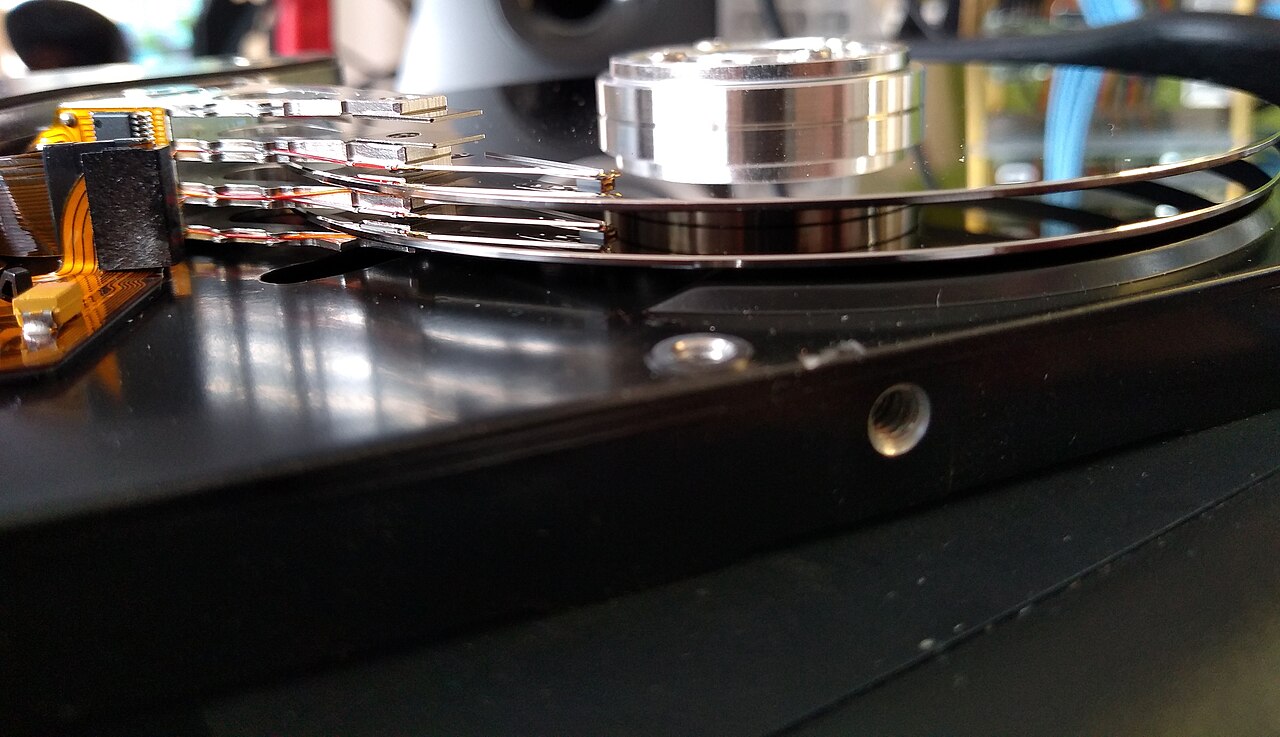
A hard drive is a mechanical device. Inside is a spinning magnetic platter and a tiny arm that physically moves to the right spot to read or write data, a bit like a record player. That movement takes real time — measured in milliseconds — and it is why a laptop with an HDD can take a full minute just to become usable after you press power.
An SSD has no moving parts. It stores data in flash memory chips and reads them electronically, so access is near-instant. In everyday terms, a good SSD is often 5 to 20 times faster than a hard drive for the things you notice: booting up, opening apps, loading levels, and copying files. That is not a spec-sheet abstraction — it is the single biggest reason a modern PC feels “fast.”
Not all SSDs are the same
Once you have decided on an SSD, there is a second fork in the road:
- SATA SSDs use the same connector older hard drives used. They cap out around 550 MB/s, which is still a massive jump over any HDD. These are the easy, affordable way to revive an older laptop or desktop.
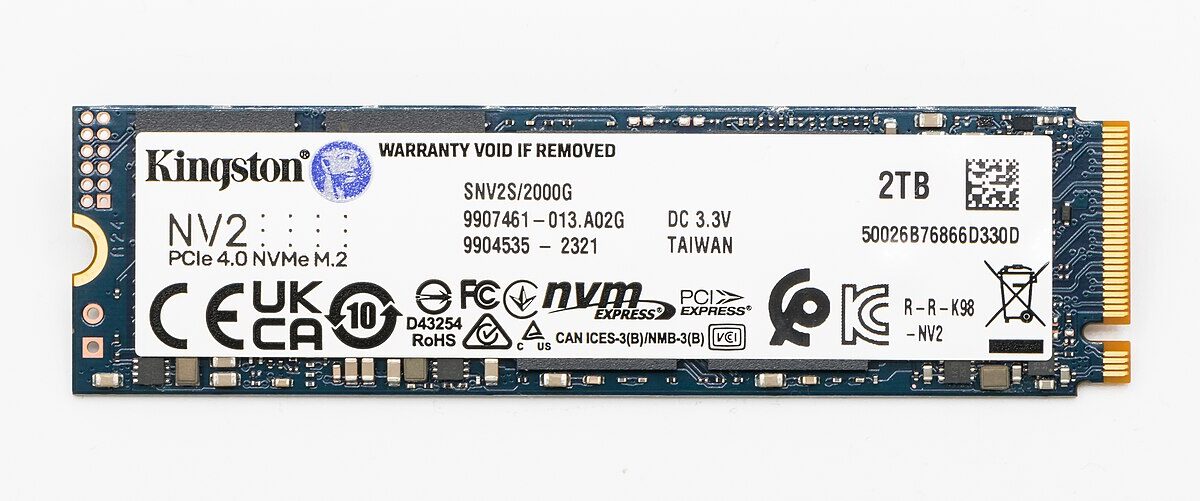
- NVMe SSDs are small stick-shaped drives (M.2) that plug straight into the motherboard and talk to the CPU over PCI Express. They range from roughly 3,500 MB/s (PCIe 3.0) to 7,000–12,000 MB/s (PCIe 4.0 and 5.0).
Here is the honest part: for normal use — browsing, office work, gaming — you will barely feel the difference between a SATA SSD and a fast NVMe drive, because both eliminate the mechanical bottleneck. NVMe pulls ahead when you move huge files or do video editing. Do not pay a premium for PCIe 5.0 unless your work is genuinely storage-heavy; the gap in real-world game load times is often a second or two.
Where hard drives still make sense
HDDs are not obsolete — they are just specialized now. Their advantage is cost per terabyte. Bulk hard drives remain dramatically cheaper for large capacities, which is why they are still the default in network-attached storage (NAS) boxes, security-camera recorders, and desktops used for archiving.
If you are hoarding a 12-terabyte movie collection or keeping cold backups you touch twice a year, a hard drive gives you the most gigabytes for your money. The speed penalty does not matter for files that mostly sit there. A common, smart setup is a fast SSD for the system and games plus a big HDD as a “junk drawer” for everything else. If you are building out a home-office setup, that split keeps costs sane without slowing you down.
What about reliability and lifespan?
People used to worry that SSDs “wear out.” Flash memory does have a finite number of write cycles, but modern drives spread writes across the chips so evenly that a typical consumer SSD will outlast the computer it is in. Unless you are writing hundreds of gigabytes every single day, you will replace the whole machine long before the drive dies.
Hard drives fail differently: because they are mechanical, a bump or a drop while spinning can be fatal, and they simply have more parts to wear out. That is a big reason laptops moved to SSDs almost entirely — there is nothing inside to jolt. Whatever you choose, remember the golden rule: no single drive is a backup. Keep a second copy of anything you would hate to lose.
How much capacity do you actually need?
Speed is only half the decision — size is the other, and running out of room is its own kind of slow. As a rough guide: 256 GB fills up fast once you add a few large games or a couple of years of photos; 512 GB is the comfortable sweet spot for most people; and 1 TB or more makes sense if you game seriously, edit photos and video, or simply hate managing space. Games have ballooned especially hard, with single titles now routinely passing 100 GB, so gamers should always size up rather than down.
This is exactly where the SSD-plus-HDD combo shines. Keep your operating system, apps, and current games on a fast SSD, and offload the things you rarely touch — finished projects, old footage, backups — onto a big, cheap hard drive. You get instant speed where you feel it and generous capacity where you do not, without paying premium SSD prices for terabytes of storage that mostly just sits there.
Quick buying guide
- New laptop or desktop: insist on an NVMe SSD as the boot drive. In 2026 this should be non-negotiable, and thankfully most machines ship this way. If you are shopping, our picks for the best laptops under $700 all use SSDs for exactly this reason.
- Reviving an old PC: a budget internal SSD is the single most cost-effective upgrade you can make — it will feel like a new computer.
- Extra bulk storage: a large HDD for archives, or a portable SSD if you want speed you can carry between devices.
- Handhelds and consoles: these already rely on fast flash storage — it is part of why devices like the Steam Deck OLED load games so quickly.
The bottom line
The debate is not really SSD versus HDD anymore — it is “SSD for speed, HDD for cheap capacity, and often both.” If you only remember one thing, make it this: your main drive should always be an SSD. It is the upgrade you feel every single time you turn the computer on.
Featured image: Kingston NV2 SSD by Jacek Halicki, Wikimedia Commons (CC BY-SA 4.0)
Leave a Reply